

1) Opening Data Sources
Access the OneS1ght console at
console.ones1ght.com.
The Data Sources menu is visible only to manager and above. If you have no account or lack the permission,
ask your organization’s owner or manager for an invitation and the permission. OneS1ght is invite-only, so there is no self-signup.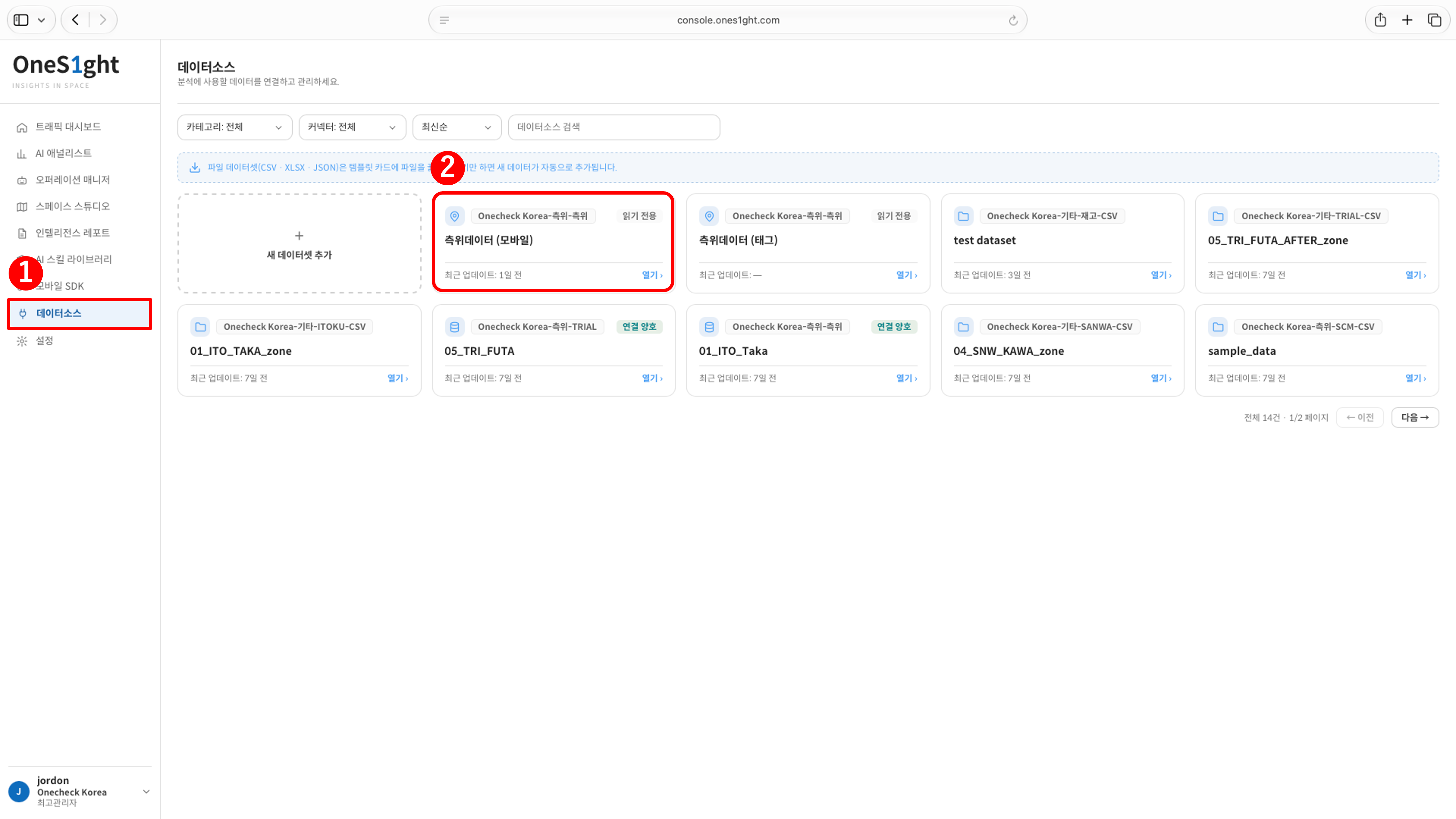
- Log in to the OneS1ght console, then go to [Data Sources] in the sidebar.
- Click [Open] on the ‘Positioning Data (Mobile)’ card. This is the raw location data collected by the mobile SDK and is read-only.
2) Checking the Data Overview
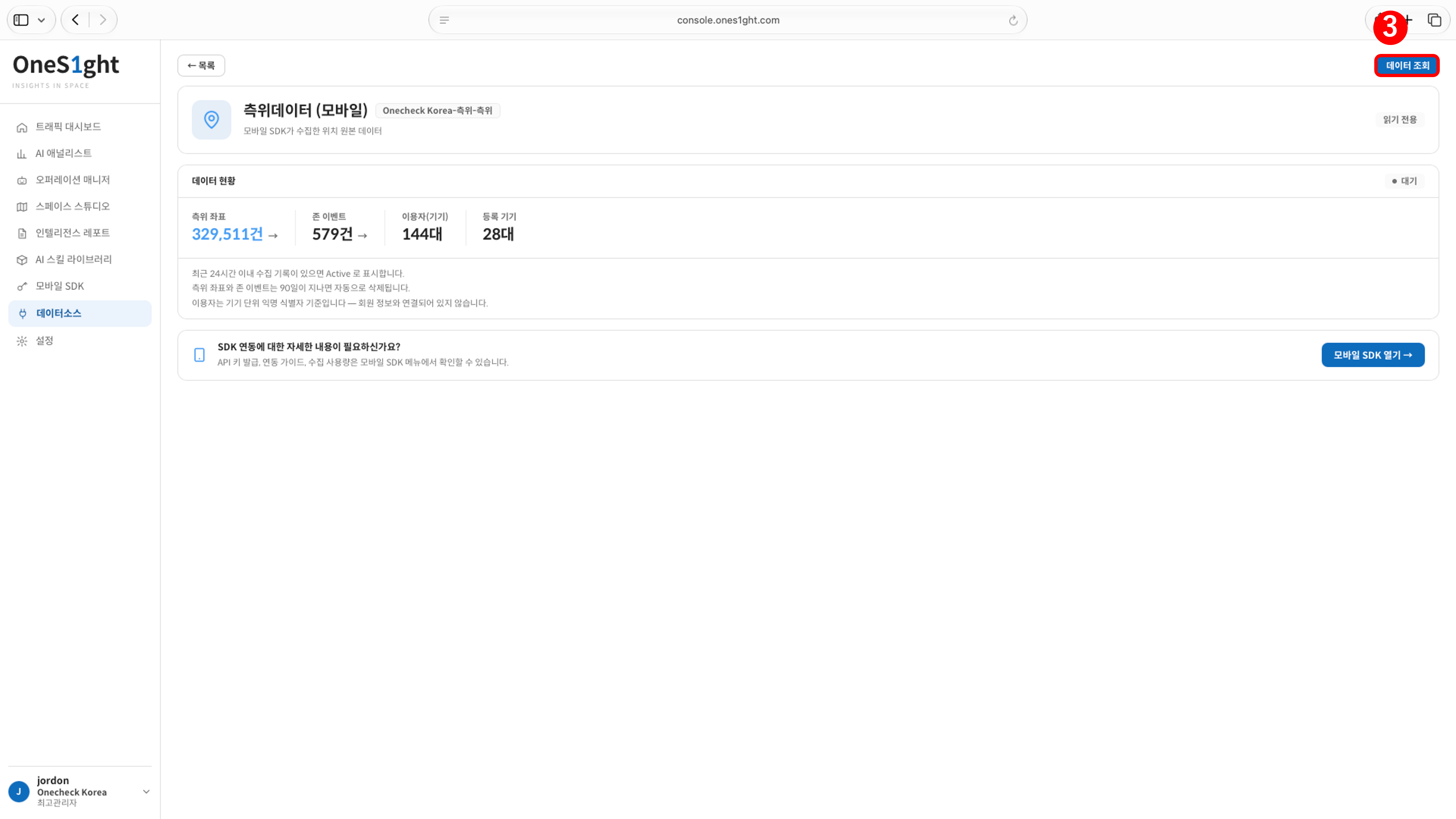
- The status indicator at the top right of the Data Overview shows Active when coordinates were collected within the last 24 hours, and Waiting otherwise.
- Positioning coordinates and zone events are deleted automatically after 90 days.
If you open this screen right after running positioning with the verification app, the status should be Active and the positioning coordinate count should be higher than before verification.
If the status stays ‘Waiting’ or the count does not increase, coordinates are not reaching the server;
contact onesight-support@onecheck.co.kr.
3) Querying Raw Data
Click [Query Data] (③) at the top right of the Data Overview screen to open the ‘Mobile (SDK) Raw Data’ screen.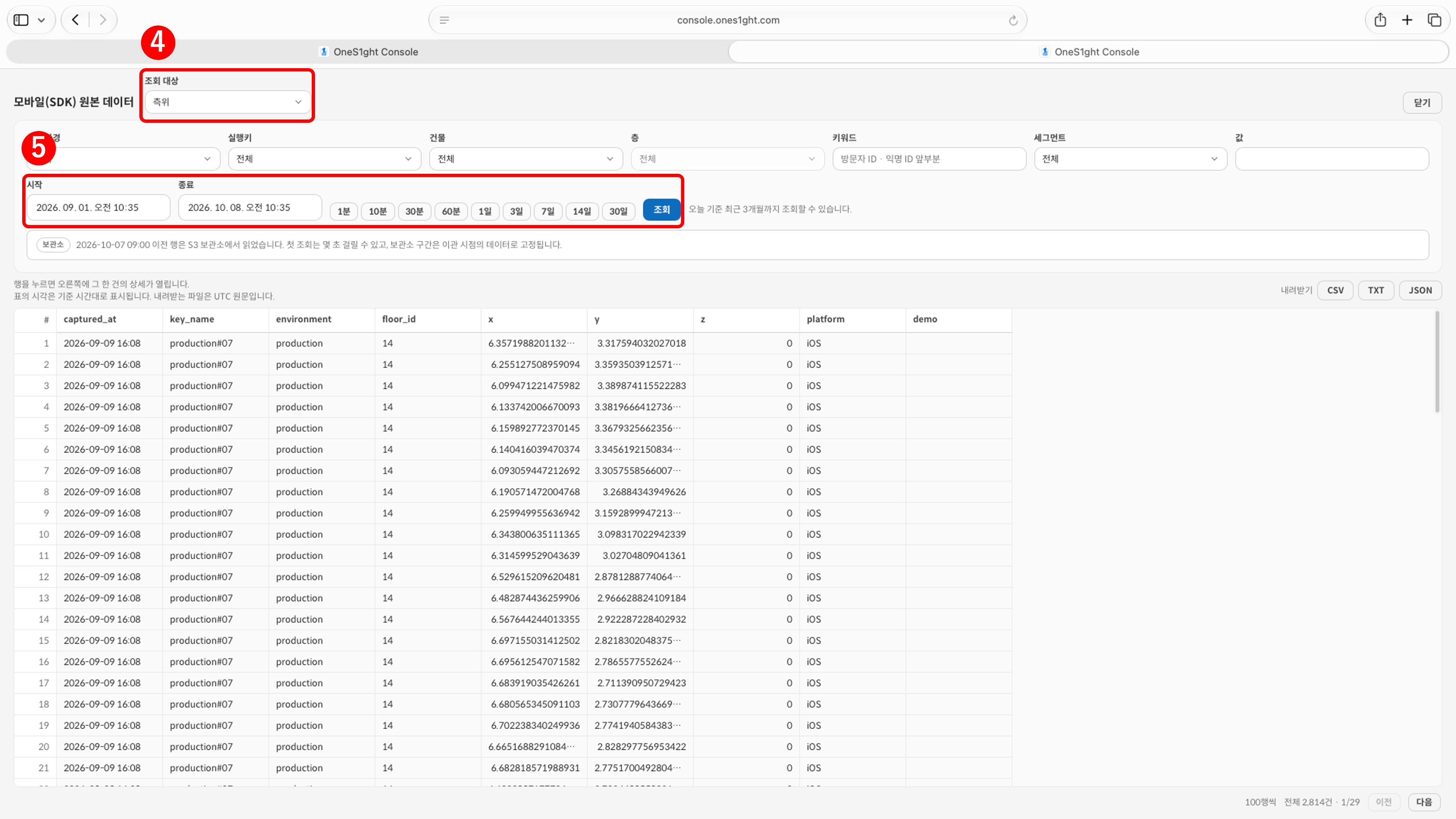
- Select the query target. ‘Positioning’ is the collected coordinates; ‘Events’ is the zone enter and exit records.
- Set the start and end time or click a period button (1 minute to 30 days), then click [Query]. You can query up to the last 3 months from today.
- If needed, narrow the results by building, floor, environment, SDK key, or keyword (the beginning of a visitor ID or anonymous ID). For ‘Events’ you can also narrow by zone.
When the query target is ‘Events’
- Click a row to open the details of that record on the right.
- You can download the query results as [CSV] · [TXT] · [JSON].
Ranges marked with an archive notice (rows from before the migration point) are read from the S3 archive, so the first query may take a few seconds.
Checklist
Check these together with verification after setting up the positioning infrastructure.