

How the parts fit together
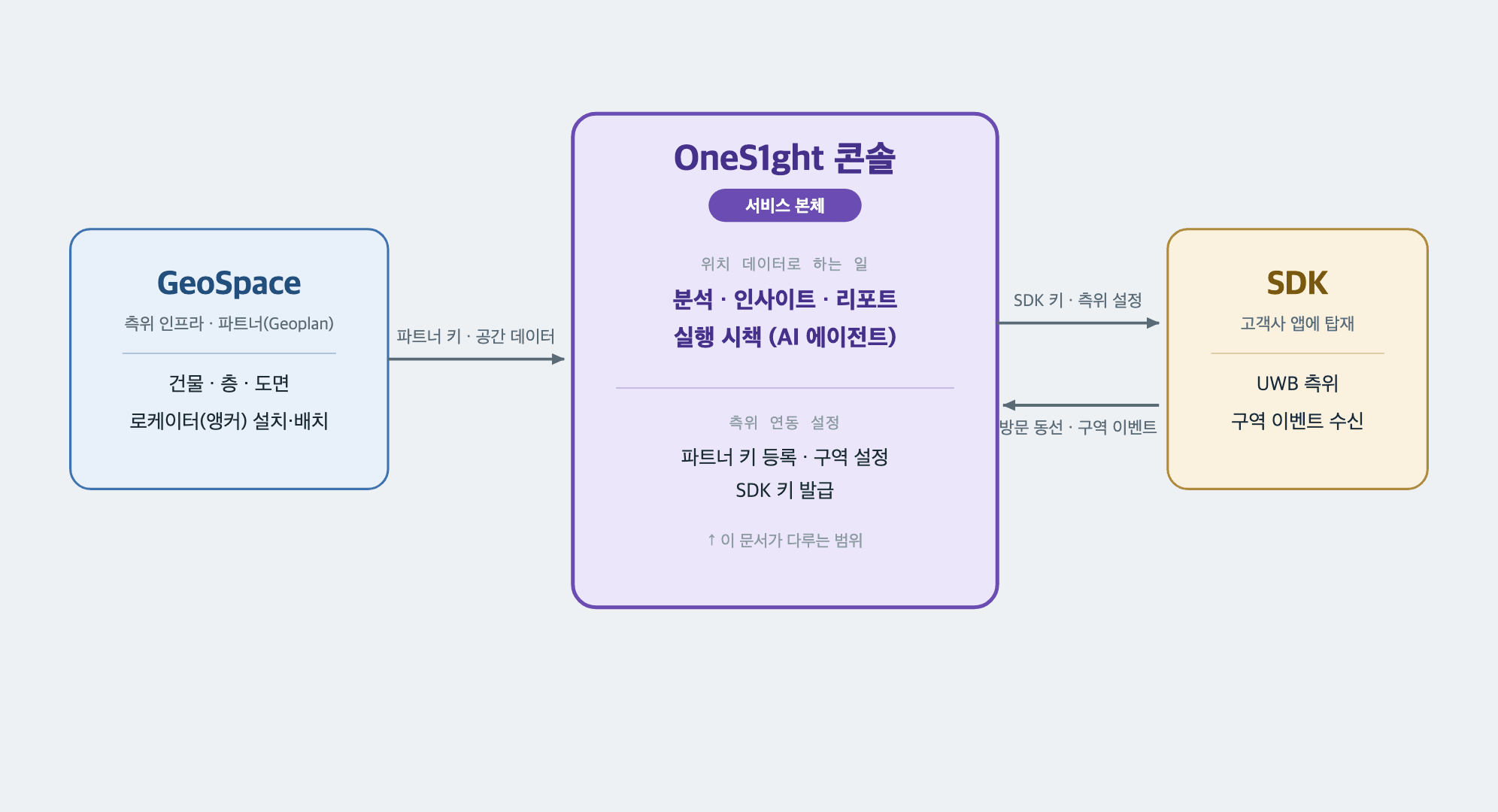
GeoSpace
The partner (Geoplan) providing indoor positioning infrastructure. Registers and manages buildings, floors, plans, and locators (anchors), and issues the partner key used for integration.
OneS1ght console
The service itself. Turns collected location and movement data into analytics, insights, and reports, and connects them to actions (AI agents). Partner key registration, area setup, and SDK key issuance also happen here.
SDK
The positioning library you embed in your app. Measures indoor position over UWB and delivers zone entry, exit, and dwell events to your app.
This guide covers only what’s needed for positioning integration (GeoSpace preparation, console setup, SDK integration). Console analytics, insights, and reporting features are out of scope.
Order of work
Prepare the three parts in this order — each step is a prerequisite for the next.1
1. Prepare positioning infrastructure in GeoSpace
Register buildings, floors, and plans, install and place locators, then issue the partner key.
2
2. Connect and configure in the OneS1ght console
Register the partner key to connect your spaces, create the areas you want to detect, and issue an SDK key.
3
3. Integrate the SDK into your app
Use the SDK key to add the SDK to your app. Positioning and zone events then flow back into the console.
Detailed flow
① GeoSpace — spaces and locators
In the partner infrastructure, register buildings, floors, and plans, then install and place locators (anchors). Finally, issue the partner key.→ GeoSpace setup · Build spaces · Locator setup
② OneS1ght console — connection, areas, keys
Register the partner key in the console to connect your floor plans, set up the areas (zones) to detect, then issue the SDK key for your app.→ Positioning connection · Space management · Mobile SDK Keys
③ App — SDK integration
Add the OneS1ght SDK to your app using the SDK key. The flow is: initialize → start positioning → receive zone events.→ Mobile SDK overview · Installation · Usage
Two consoles
Two different consoles are involved. Remember that ① happens in GeoSpace and ② in the OneS1ght console.The two consoles also use different role systems: GeoSpace uses
admin · operator · viewer, while the OneS1ght console uses owner · manager · viewer.Prerequisites checklist
Before integrating the SDK (③), the following must be in place.GeoSpace is a partner service (Geoplan) providing UWB indoor positioning infrastructure. This guide covers only the preparation needed for OneS1ght integration — see the GeoSpace guide for details on GeoSpace itself.
Next steps
① Start with GeoSpace setup
Sign in, choose a tenant, and issue a partner key.
③ Preview SDK integration
How to add the SDK to your app.