

Checklist before installing the SDK
Complete the items below before you integrate the SDK.1
Install the positioning infrastructure
Set up the hardware for the space where you want to run positioning.
Guide — Positioning infrastructure installation
Guide — Positioning infrastructure installation
2
Configure the positioning area
Sign in to the GeoSpace account you were given and set up the map and areas of the positioning space.
Guide — Building spaces (buildings · floor plans)
Guide — Floor plan placement · clusters
Guide — Building spaces (buildings · floor plans)
Guide — Floor plan placement · clusters
3
Connect GeoSpace
Register the GeoSpace partner API key you were issued in the OneS1ght console.
Guide — Positioning connection · key issuance
Guide — Positioning connection · key issuance
4
Issue an SDK API key
In the OneS1ght console, go to Mobile SDK > Issue API key and issue a key.
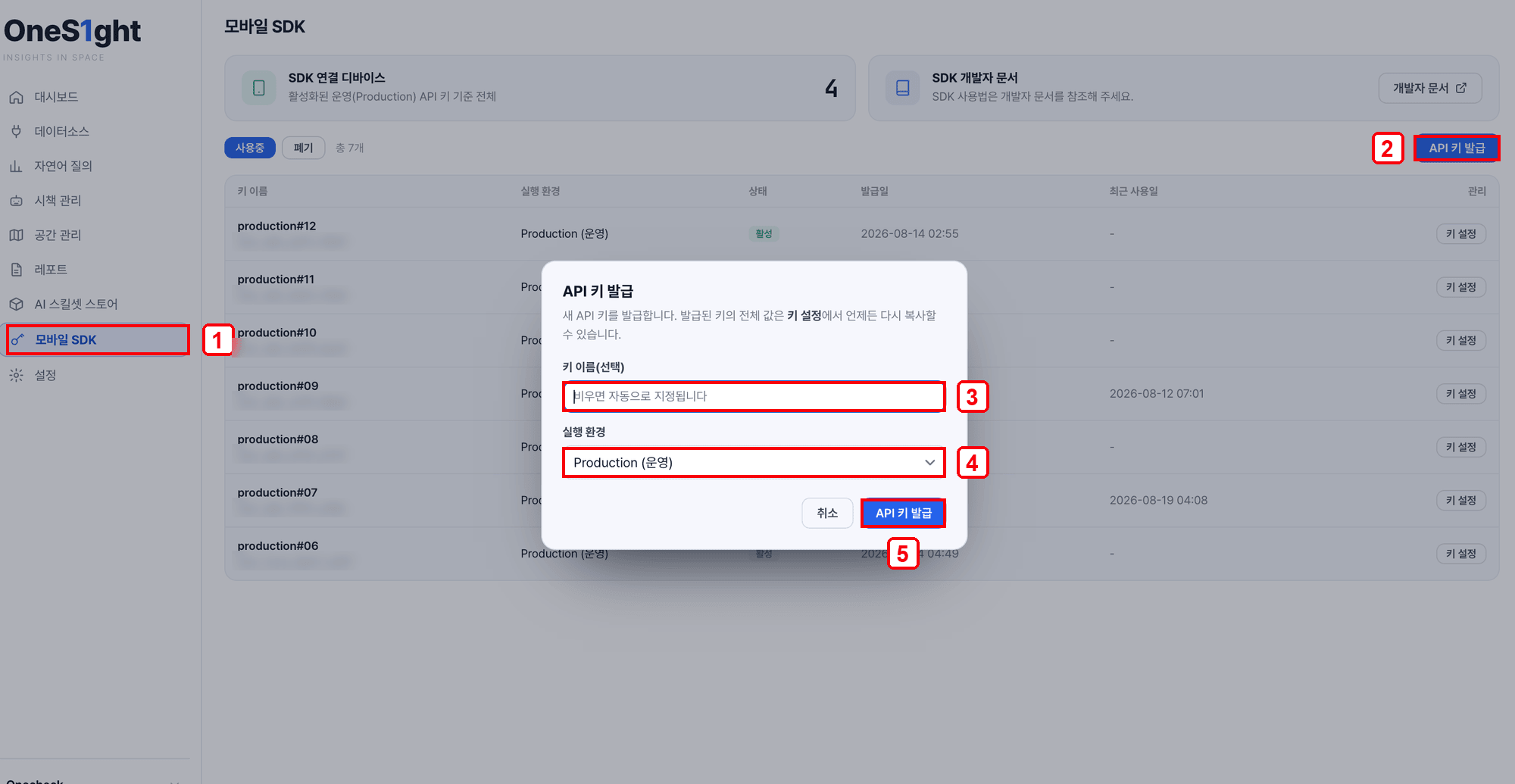
- Go to Mobile SDK in the console sidebar.
- Click [Issue API key] at the top right.
- Key name — leave it empty and one is assigned automatically (for example
production#12). - Environment — choose Development while you are testing the integration, or Production for the app you ship.
- Click [Issue API key] and the key is added to the list.
Installing the SDK
To measure how your visitors move, install the app SDK.iOS
iOS
iOS integration guide
The whole path — installation, starting positioning, receiving events and testing.
Android
Android
Coming soon.
SDK support
If you have any questions while using the SDK, contact us at developers@onecheck.co.krIncluding the error code (such as
Guide — How to collect logs
Guide — SDK error codes
Guide — Coding agents (MCP)
E3003) and the logs narrows down what we need to check. Guide — How to collect logs
Guide — SDK error codes
Guide — Coding agents (MCP)