

In this step, only upload the plan (image or DXF), set the scale (check or enter the actual plan size), and, if needed, perform Google Maps alignment. Do not use any other areas or buttons not described in this manual.
1) Registering the Building
Open the [Building List] menu and click the [+ Register Building] button at the top right of the screen.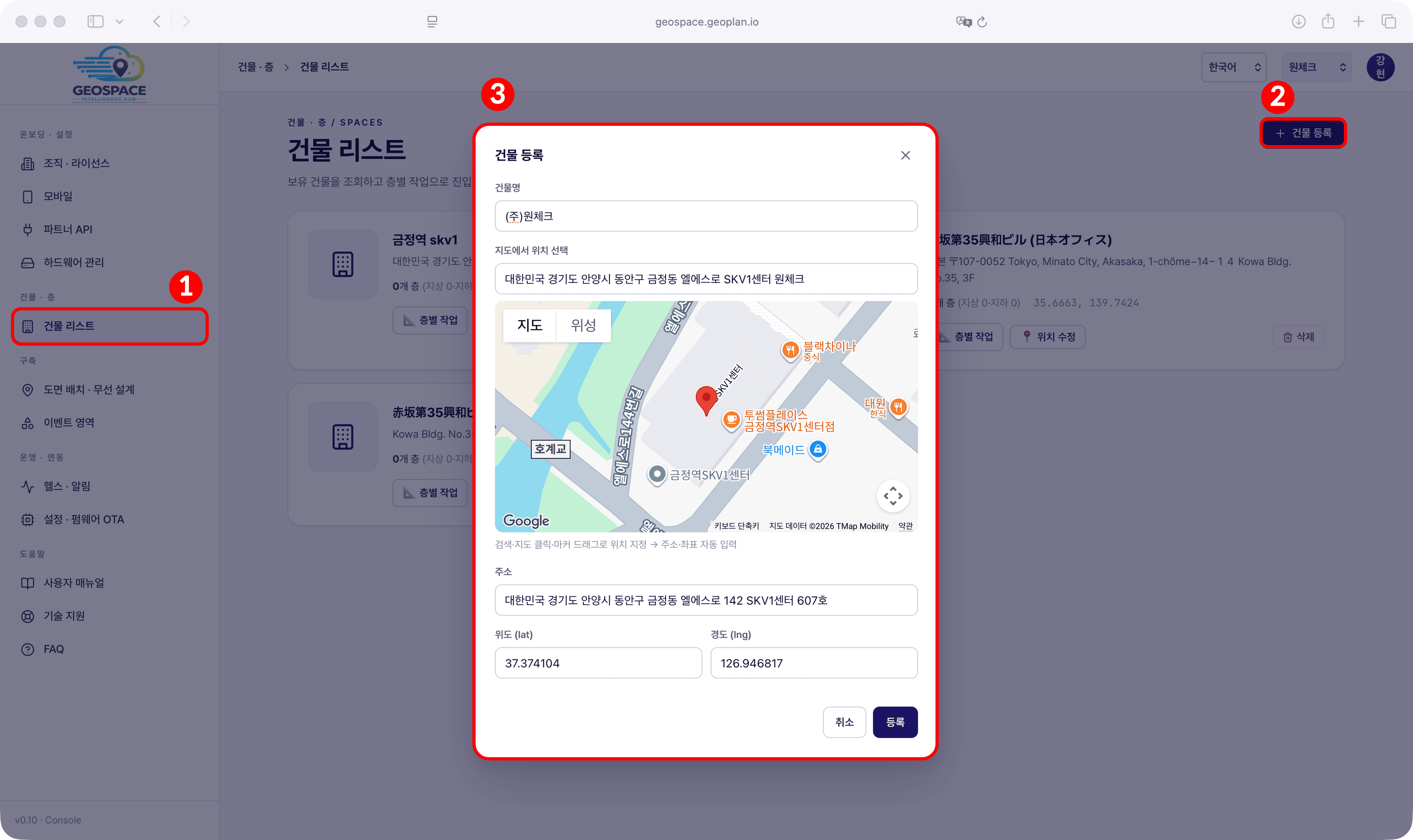
2) Registering Floors
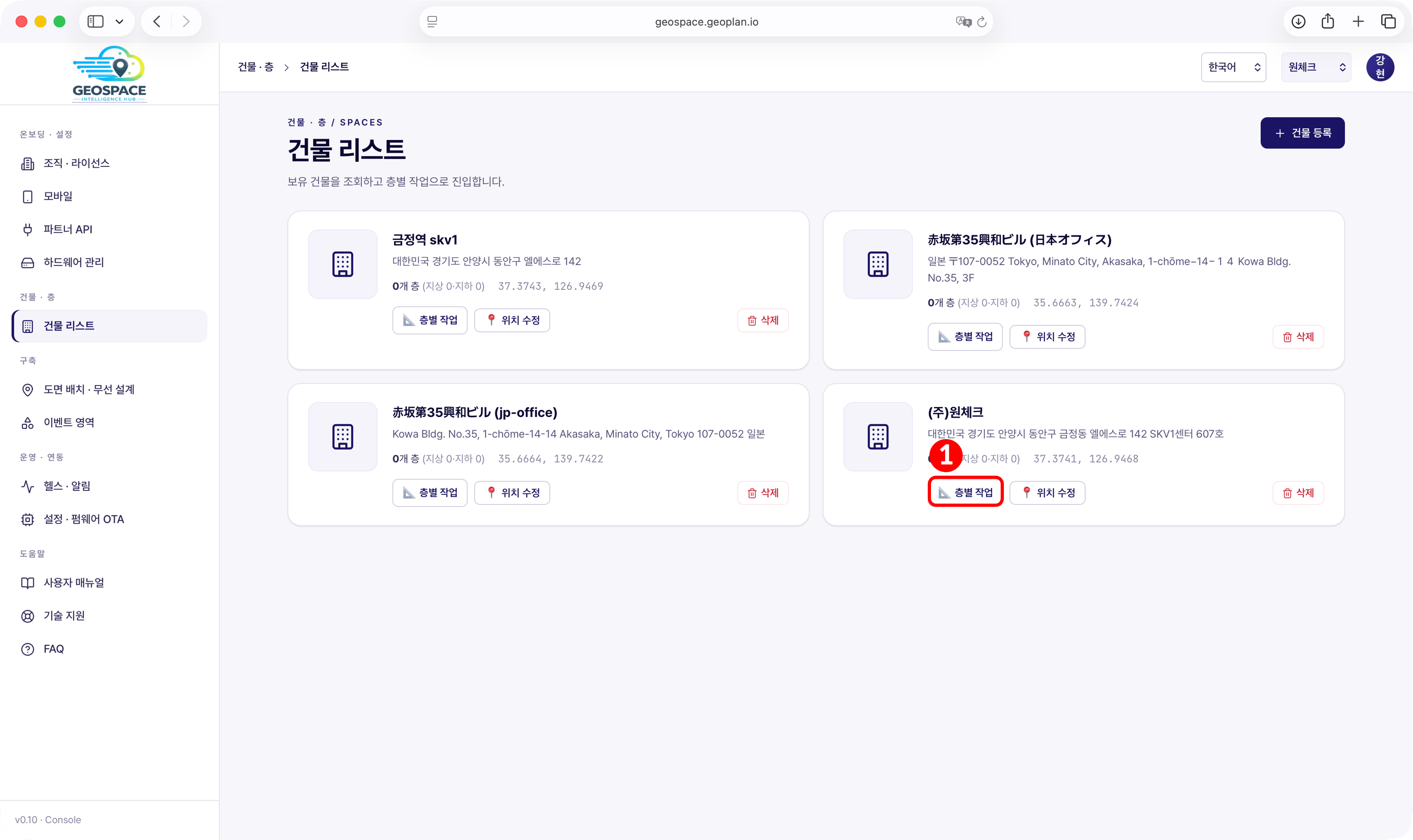
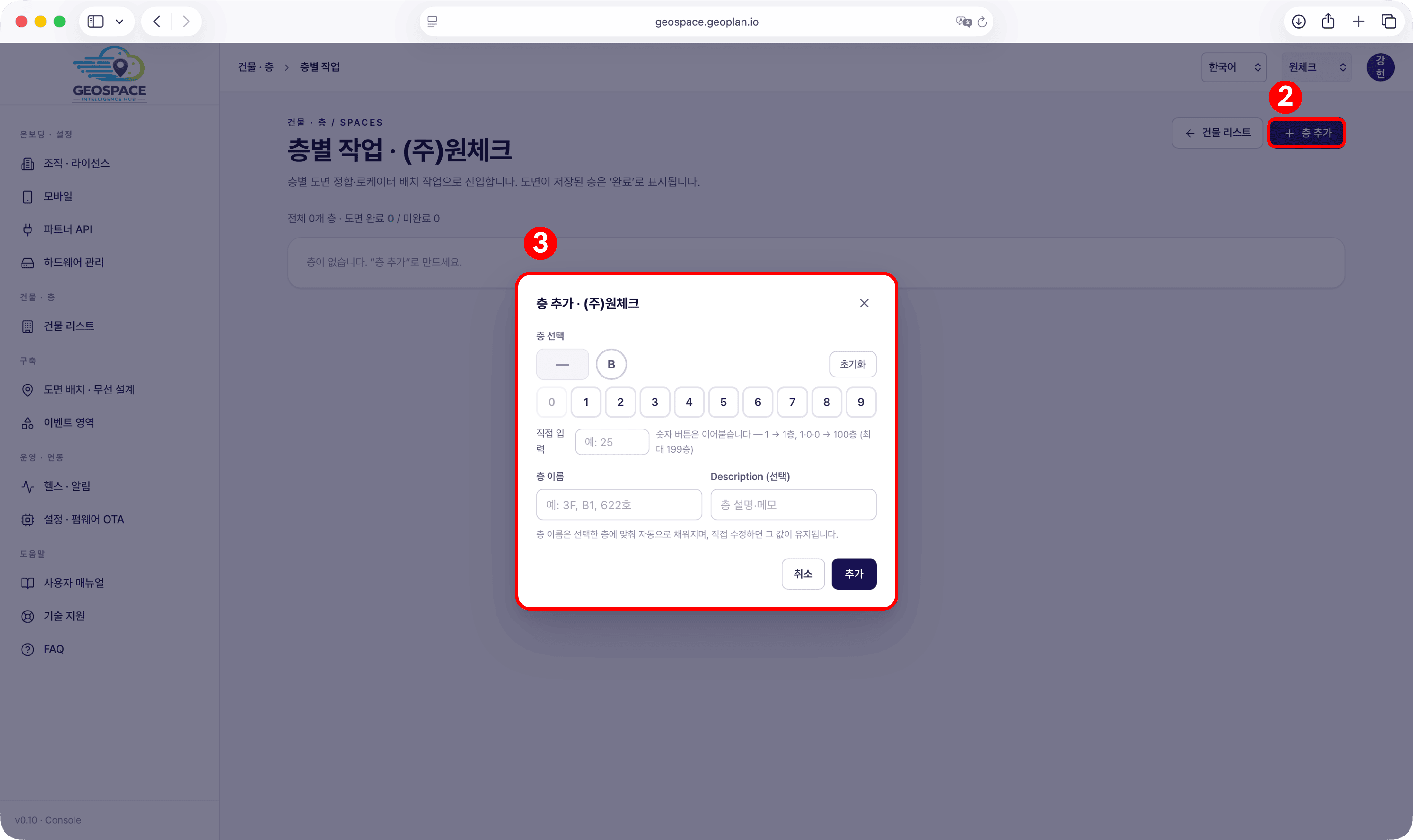
3) Registering and Setting Up the Floor Plan (Optional)
If you have no plan to register, you can skip this section and proceed to
4. On-Site Locator Installation. Locator positions are then entered
directly as coordinates in 6. Activating Positioning. In that case
the floor shows as ‘Incomplete’ instead of ‘Plan Complete’ in the floor list, which does not
block the following steps.
If you have no CAD drawing or want a quick setup, use an image. If you have a CAD drawing, use the DXF to show the wall lines accurately. Either way, positioning results are the same as long as the scale is correct.
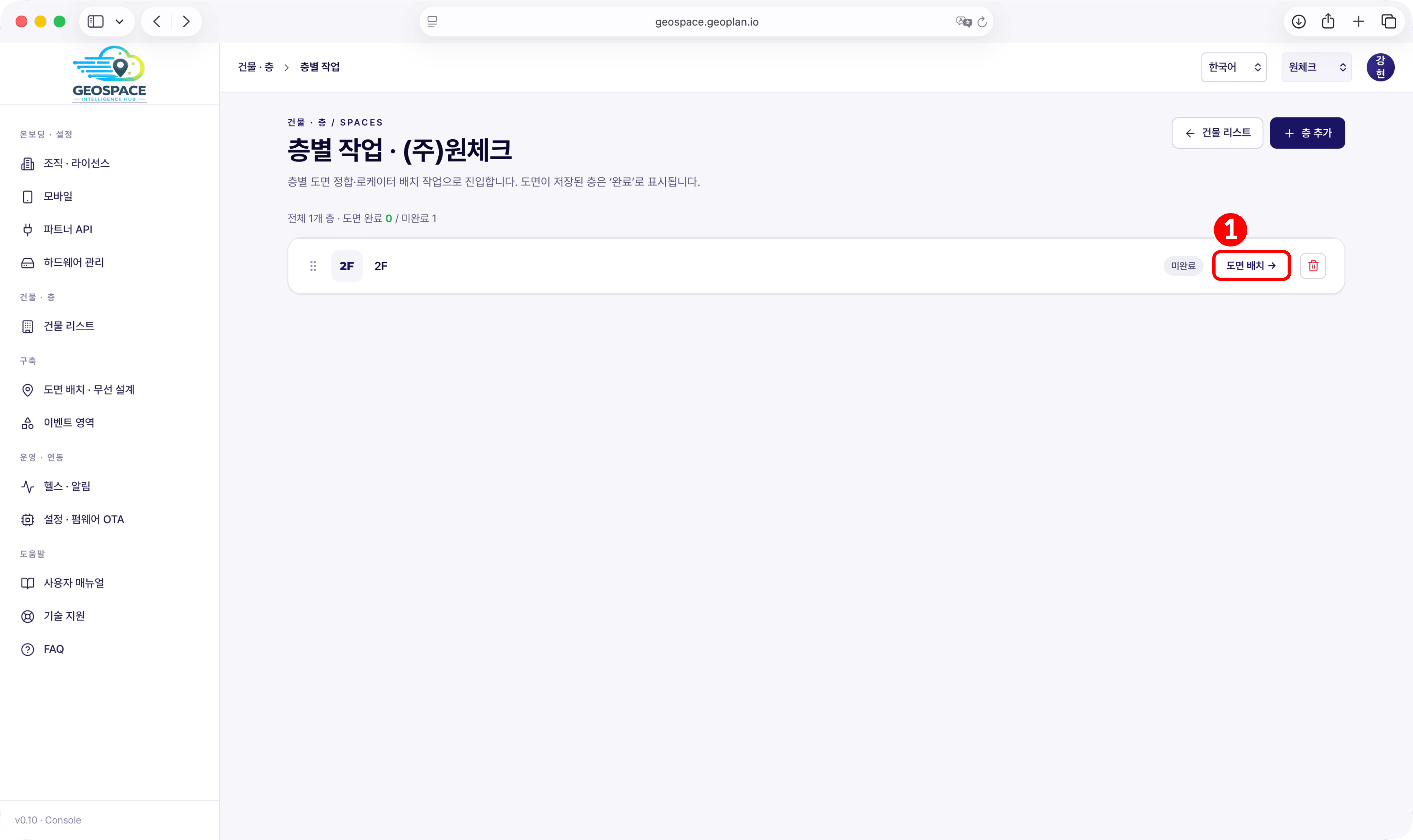
- In the floor list, click [Plan Placement →].
- Image (PNG · JPG) · Default
- DXF (CAD) · If you have a CAD drawing
-
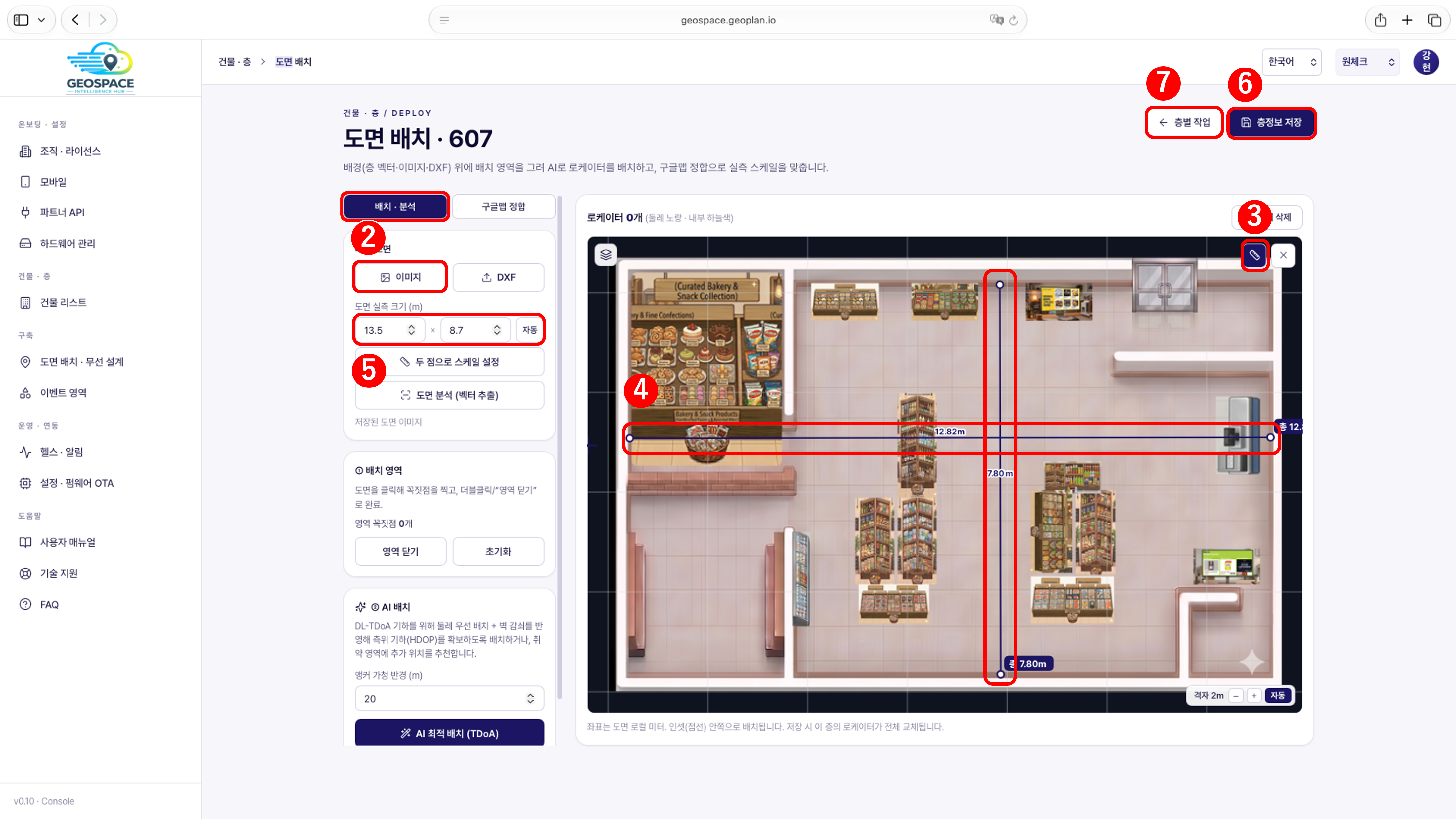
Click the [Image] button and upload the plan file (PNG or JPG), then
enter the measured width and depth (m) of the space in ‘Actual plan size’.
- When the upload completes, the image file name, size, and pixel dimensions (px), along with the measured values matching the initial image, appear as a label under the [Analyze Plan] button.
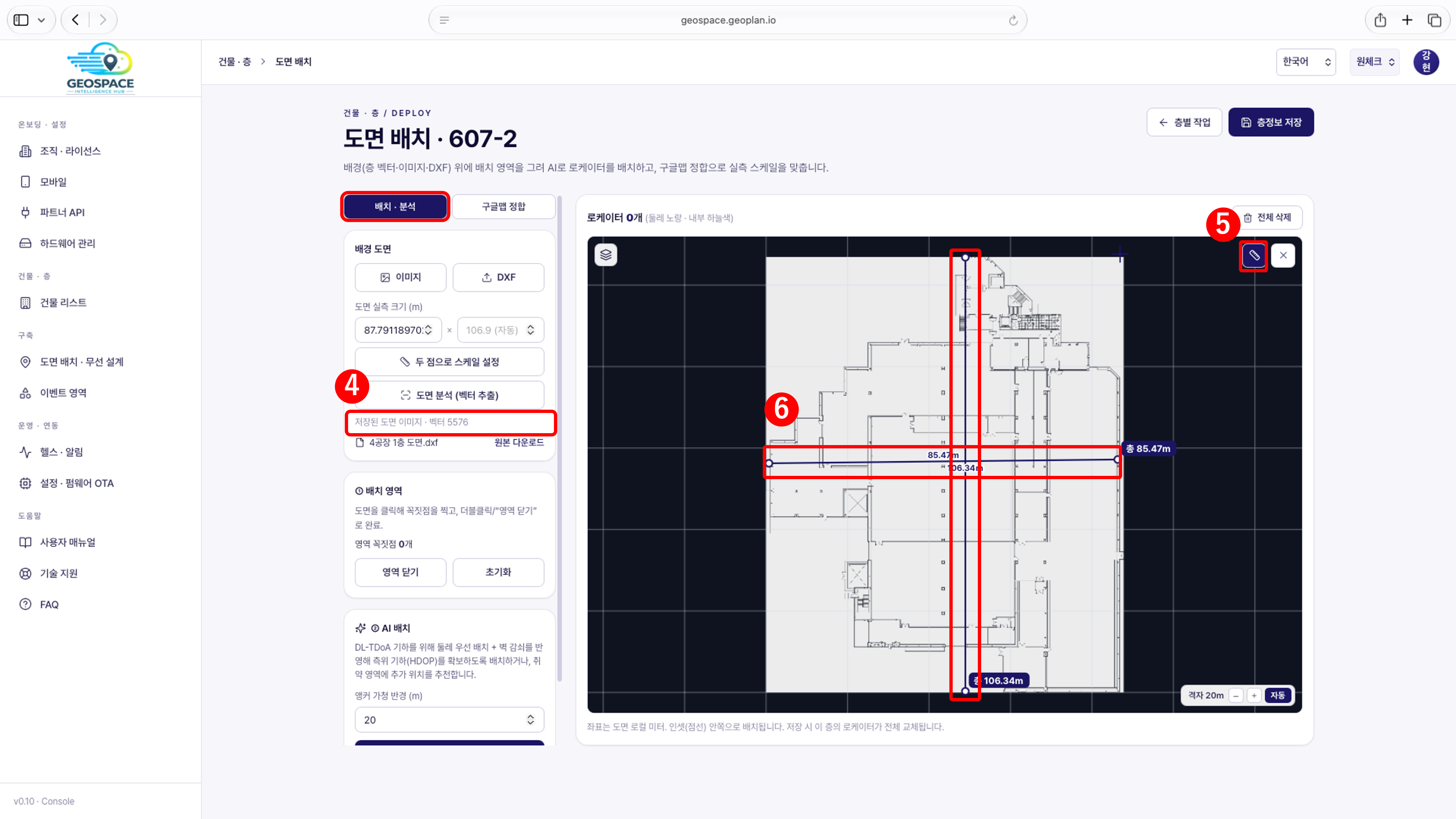
- Click the tape measure (distance measurement) button at the top right of the plan.
-
Click the two ends of a representative stretch whose real distance you know (e.g., between a wall and the opposite wall), then press Enter to measure the distance.
- Check that the measured distance matches the real size of the space, once horizontally and once vertically.
- When done, click the [X] button next to the tape measure or press ESC to end measurement.
Why verify by measuring
‘Actual plan size’ applies to the full width and depth of the plan image. If the image includes margins outside the actual space, the image size and the actual space size differ, and distances on the plan can drift from the measured values. That is why you measure a stretch with a known real distance and adjust if it is off.
‘Actual plan size’ applies to the full width and depth of the plan image. If the image includes margins outside the actual space, the image size and the actual space size differ, and distances on the plan can drift from the measured values. That is why you measure a stretch with a known real distance and adjust if it is off.
- If the measured distance differs from the actual value, re-enter ‘Actual plan size’ to match
the measured value, or adjust the scale with [Set Scale with Two Points].
- The plan image’s proportions adjust automatically to the entered values.
- When you enter the width, the depth is calculated automatically from the image’s aspect ratio. If you edited the depth manually, click [Auto] to recalculate it from the width.
[Set Scale with Two Points] button (reference)
Click two points on the plan whose real distance you know and enter that distance (m), and ‘Actual plan size’ is recalculated to match it. You do not need it if the distance measured with the tape measure matches the real value. When you click the button, it changes to [Cancel scale measure]. After you click two points on the plan, the buttons below and a ‘Real distance (m)’ input appear. The [가로+세로], [가로만], and [세로만] buttons are shown in Korean in every language.
Click two points on the plan whose real distance you know and enter that distance (m), and ‘Actual plan size’ is recalculated to match it. You do not need it if the distance measured with the tape measure matches the real value. When you click the button, it changes to [Cancel scale measure]. After you click two points on the plan, the buttons below and a ‘Real distance (m)’ input appear. The [가로+세로], [가로만], and [세로만] buttons are shown in Korean in every language.
- Click [Save Floor Info] at the top right to save the plan settings.
- Click the [Floor Tasks] button at the top right to return to the floor list.
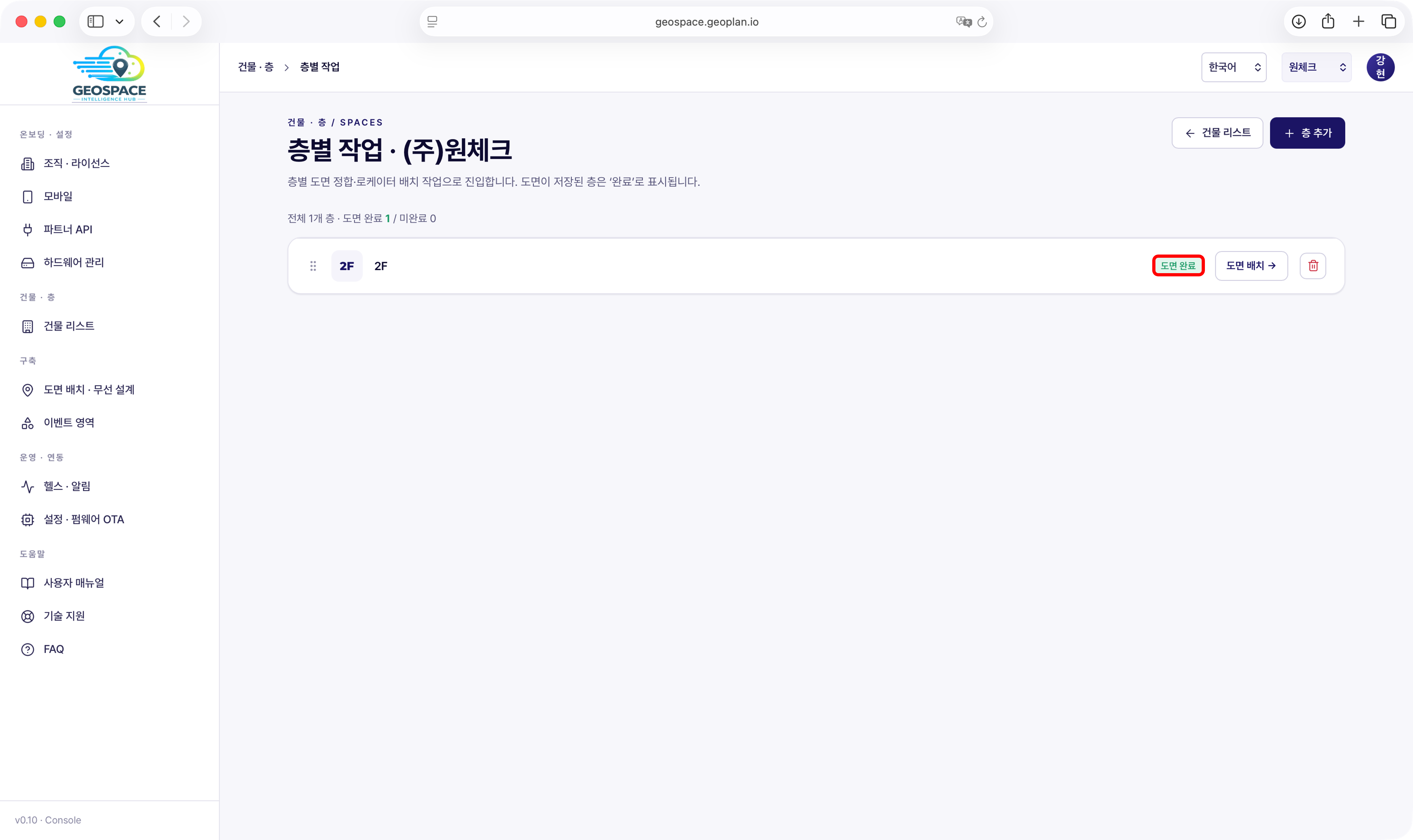
- Confirm the floor shows as ‘Plan Complete’.
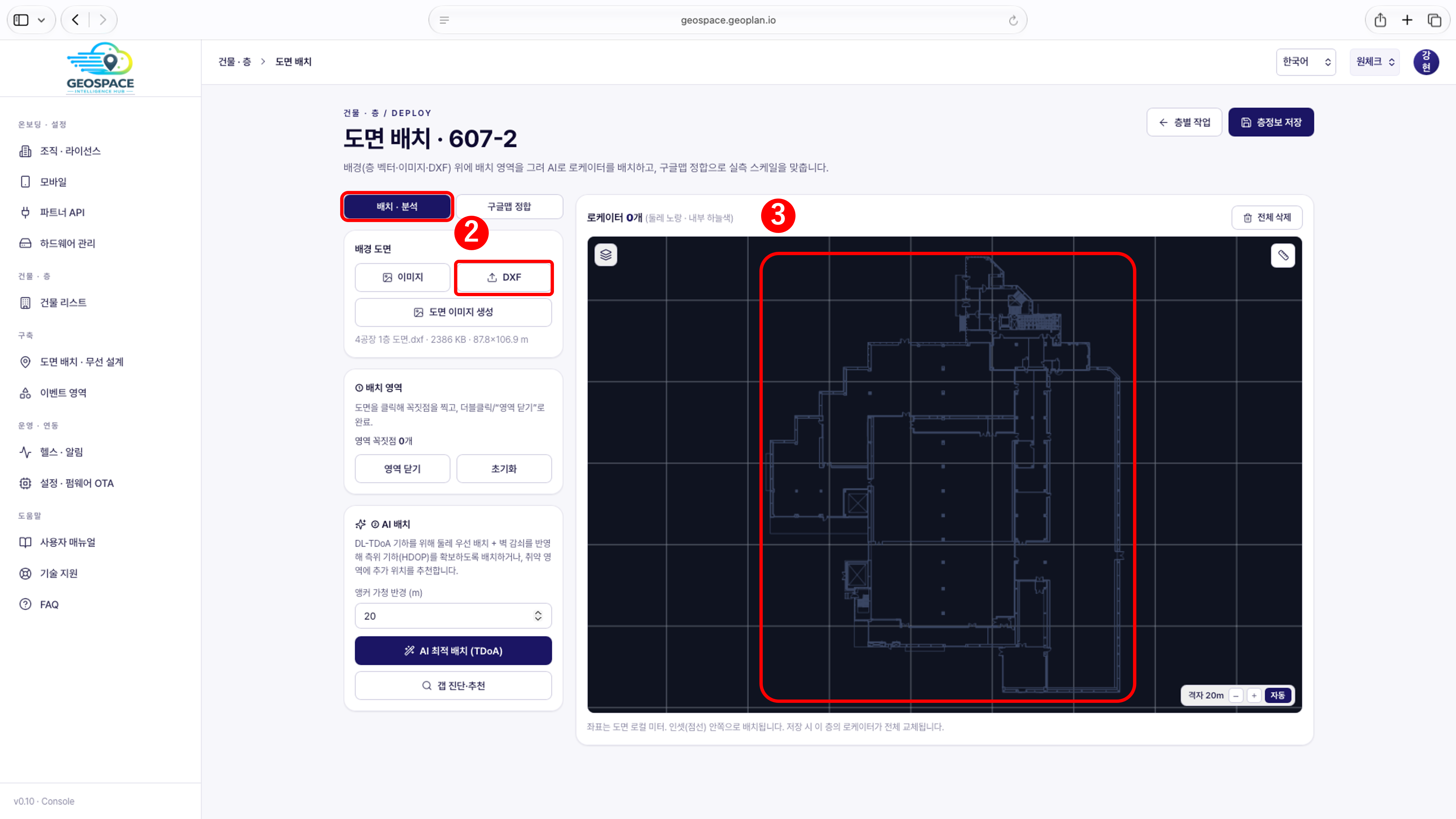
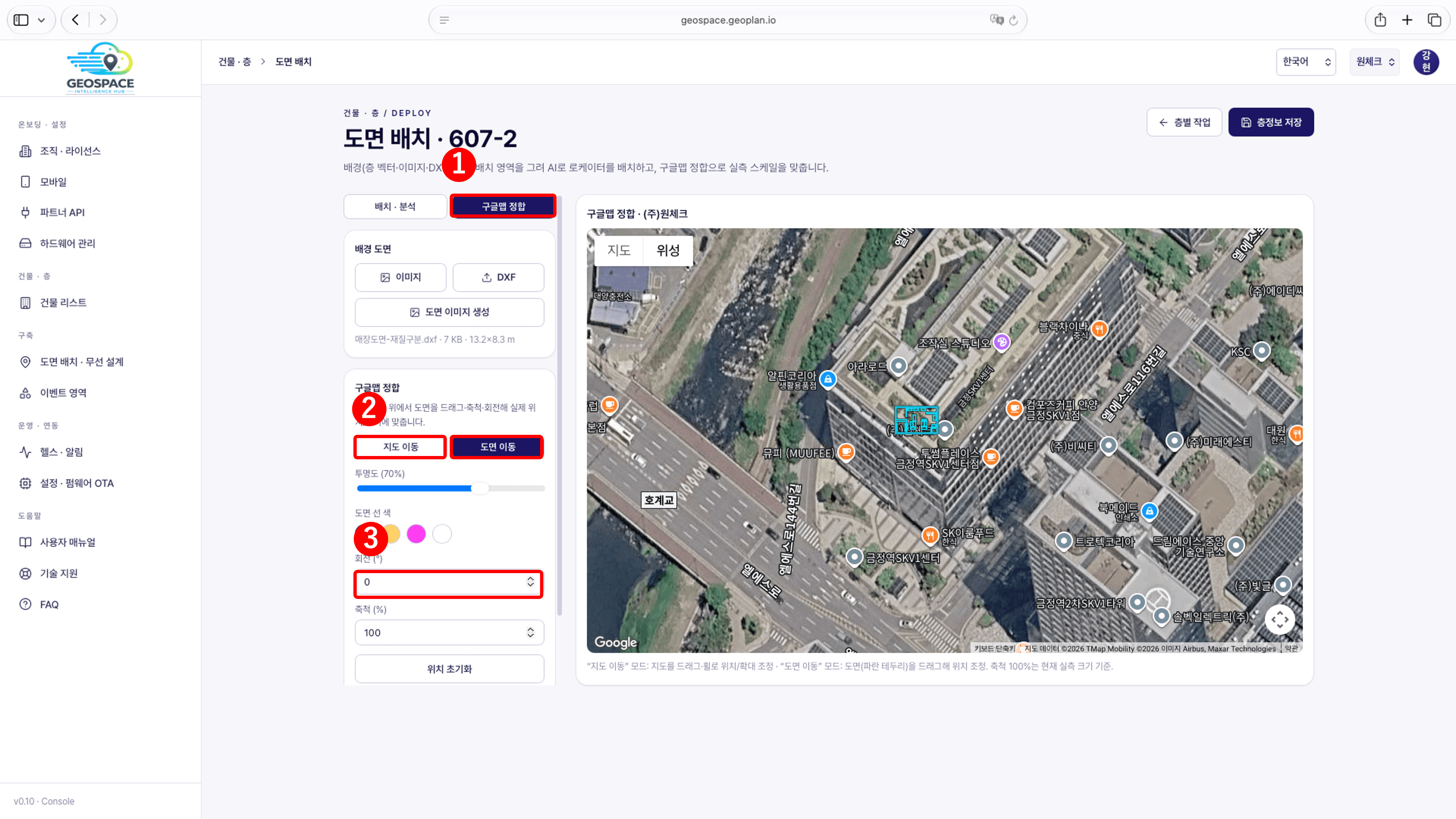
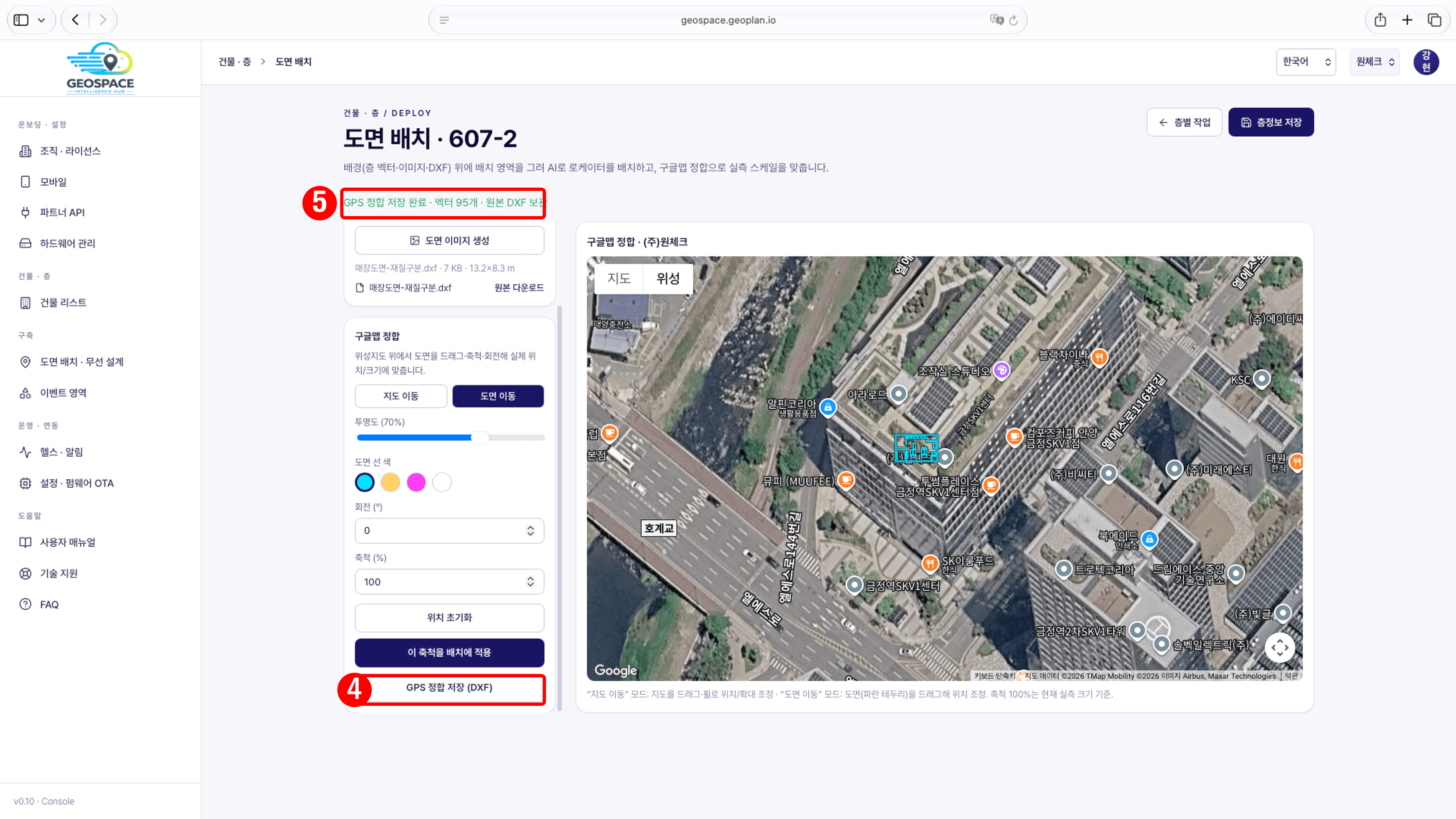
Planning features on the Plan Placement screen (reference)
The Plan Placement screen also shows the features below. They are aids for planning locator positions in advance when placing many locators in a large space, and they do not affect positioning results. They are more useful in complex interiors with many walls and rooms than in simple square or rectangular spaces.In this manual, the 4 locators are installed at the four corners of the detection area (4. On-Site Locator Installation) and placed on the plan at those positions in 6. Activating Positioning, so do not use these features and move on to the next step.
The Plan Placement screen also shows the features below. They are aids for planning locator positions in advance when placing many locators in a large space, and they do not affect positioning results. They are more useful in complex interiors with many walls and rooms than in simple square or rectangular spaces.In this manual, the 4 locators are installed at the four corners of the detection area (4. On-Site Locator Installation) and placed on the plan at those positions in 6. Activating Positioning, so do not use these features and move on to the next step.
Checklist
Once all items below are confirmed, you can move on to the next step.