

This manual is written for iOS (iPhone).
When to use this step
- Registering a locator for the first time
- When a locator’s Wi-Fi details change (the network SSID or password has changed)
- When Wi-Fi fails to connect and you need to set it again (Troubleshooting)
1) Installing GeoSpace Mobile and Logging In
- Tap a badge below to install and open GeoSpace Mobile from the store.


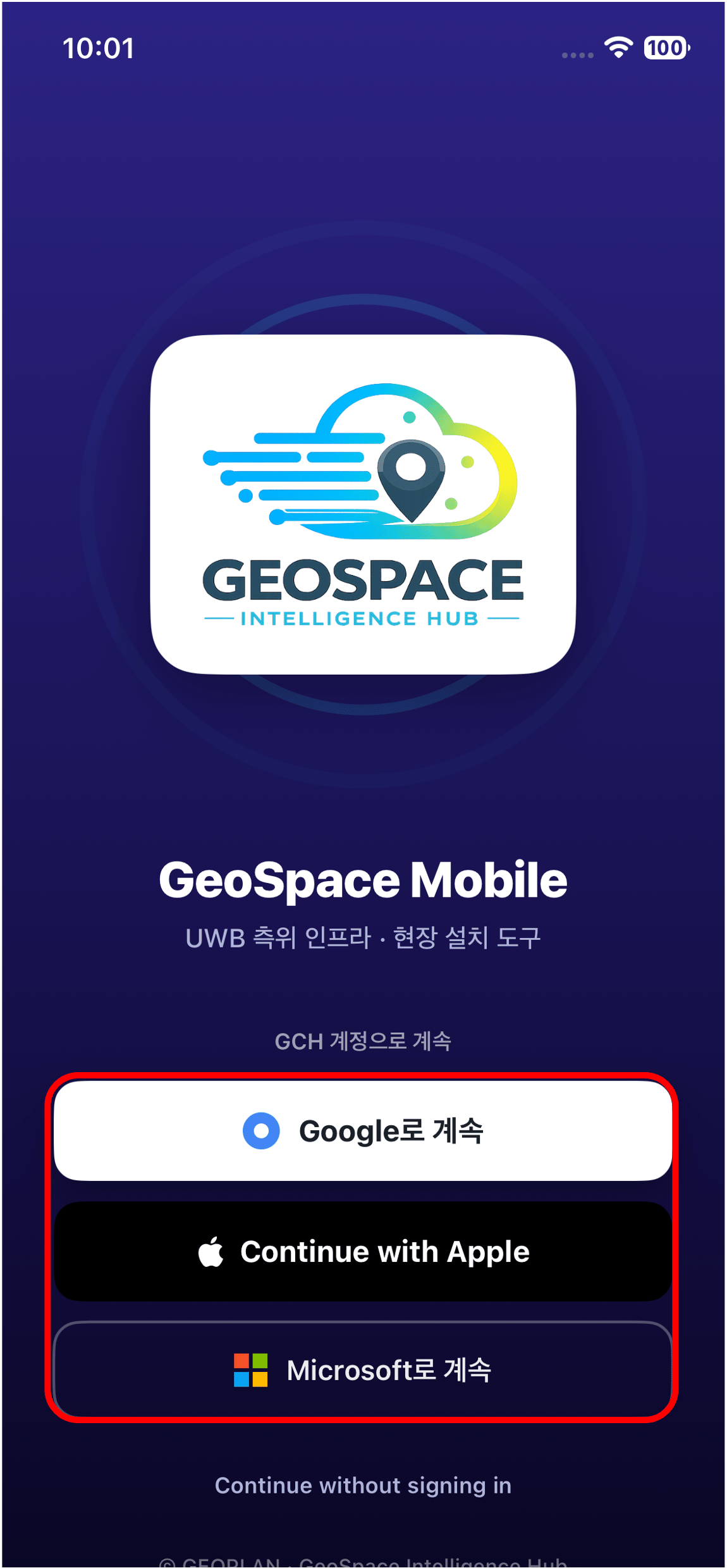
- On the login screen, log in with the account you use.
Logging in requires 2. Account Registration to be complete.
2) Device Provisioning
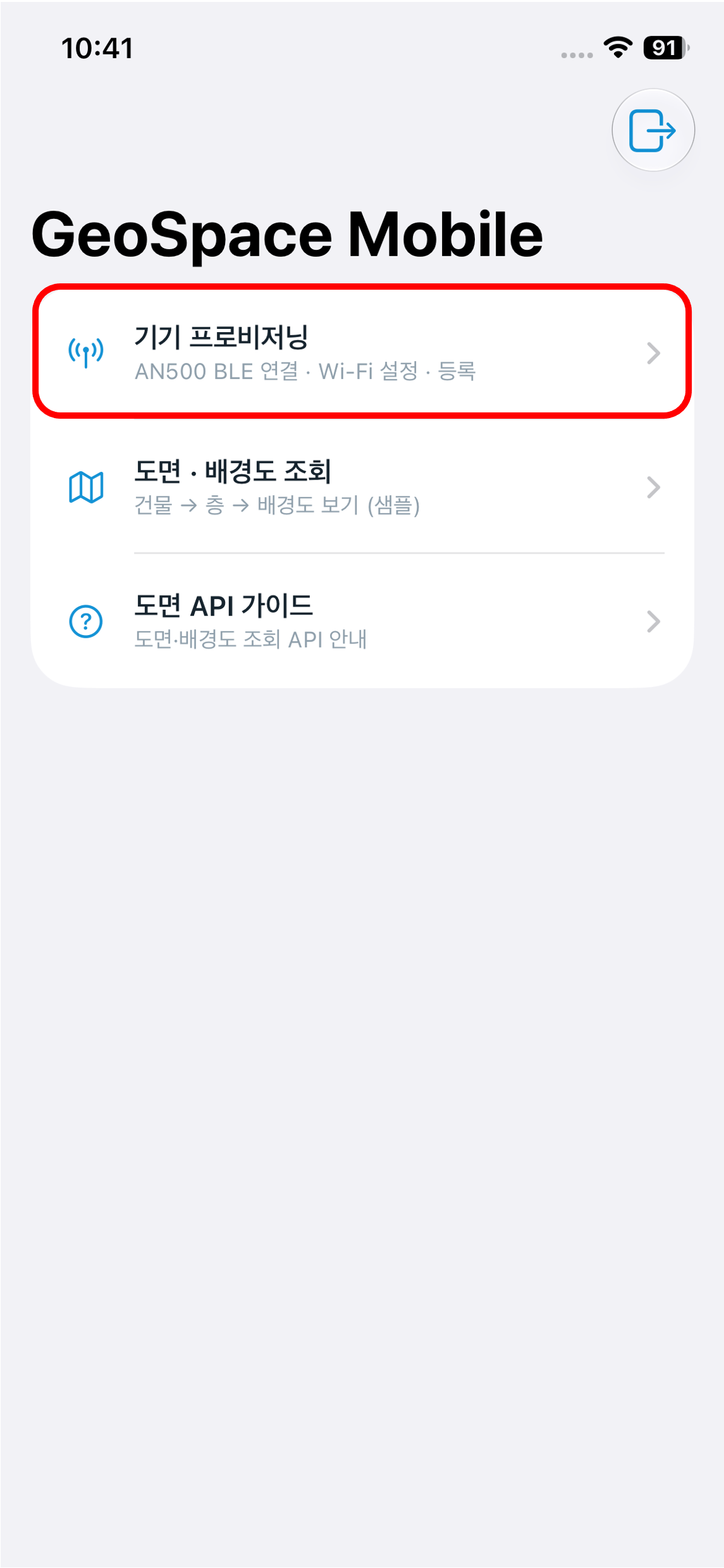
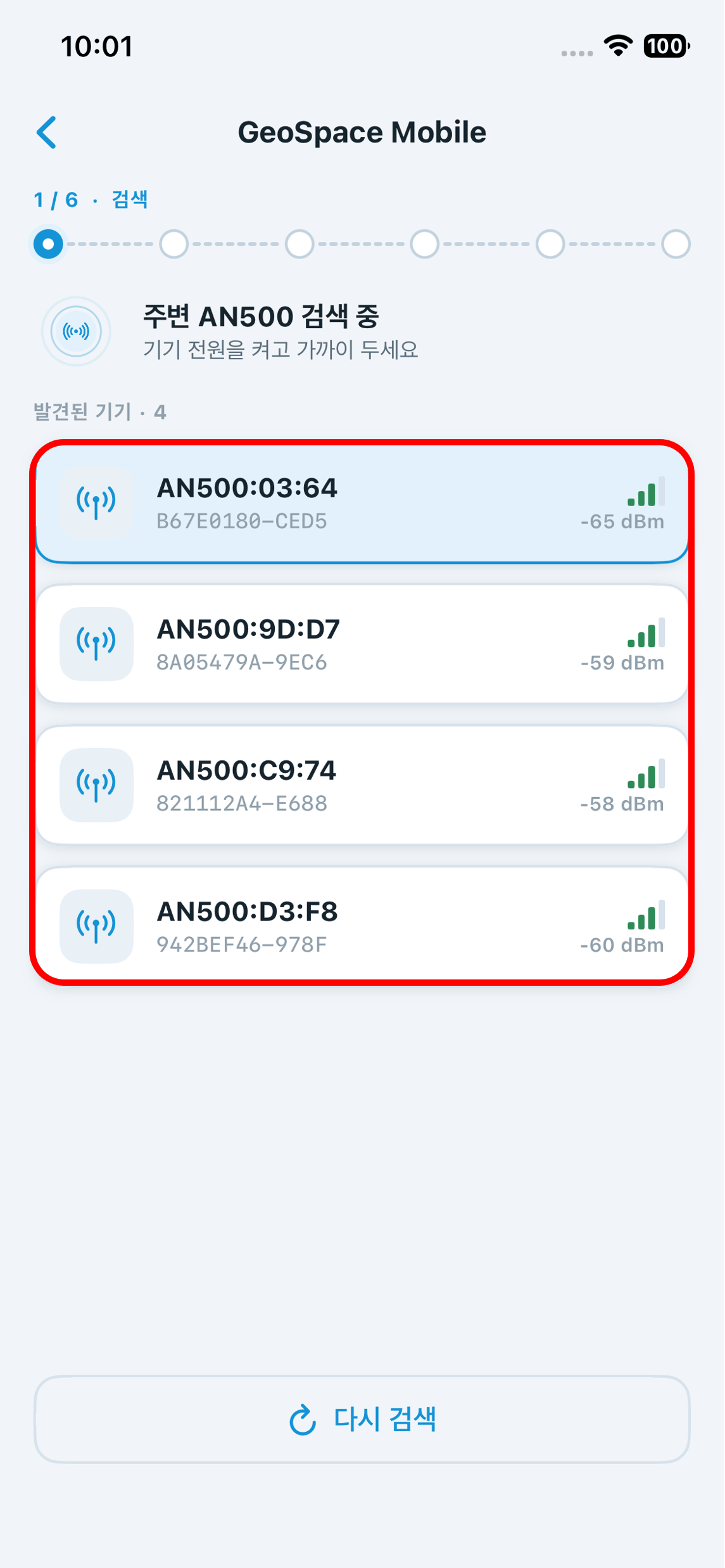
- Select the locator to register from the discovered list. Identify it by matching the last 4 digits of the device name (e.g., AN500:03:64) with the MAC digits you wrote on the front in 4. On-Site Locator Installation.
- If the device does not appear in the list, click [Search Again].
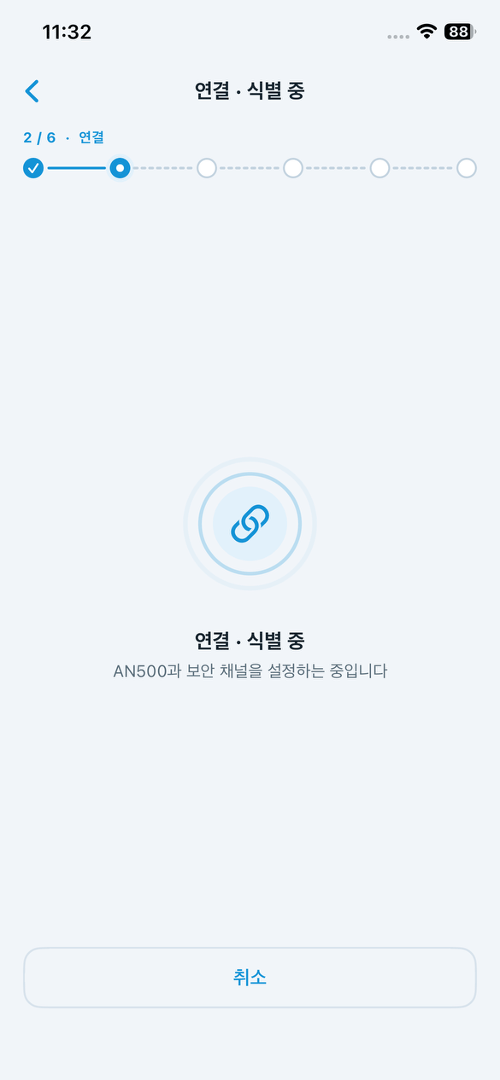
The connection can fail with a ‘Connection failed (device response timeout)’ message.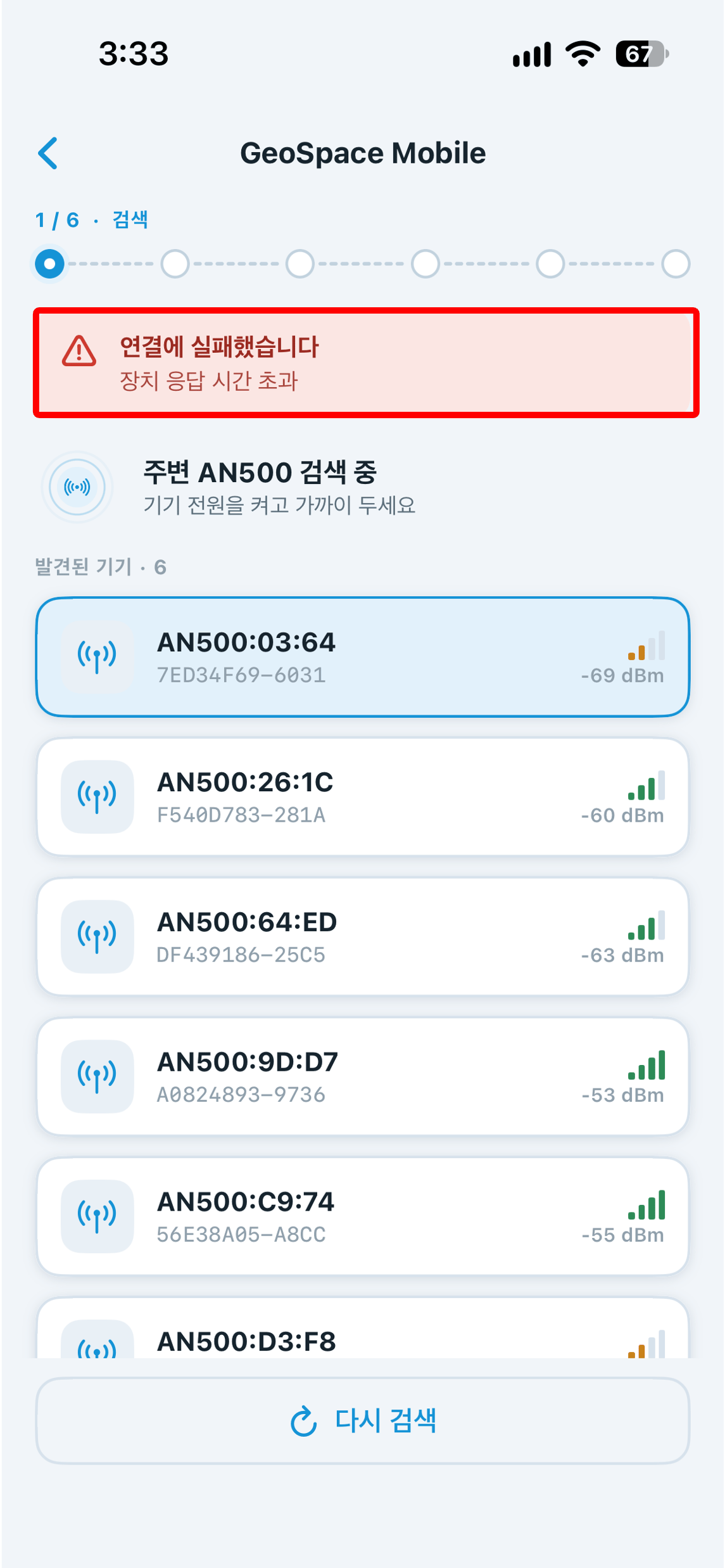
When retrying, keep the phone as close to the locator as possible, touching it.
When retrying, keep the phone as close to the locator as possible, touching it.
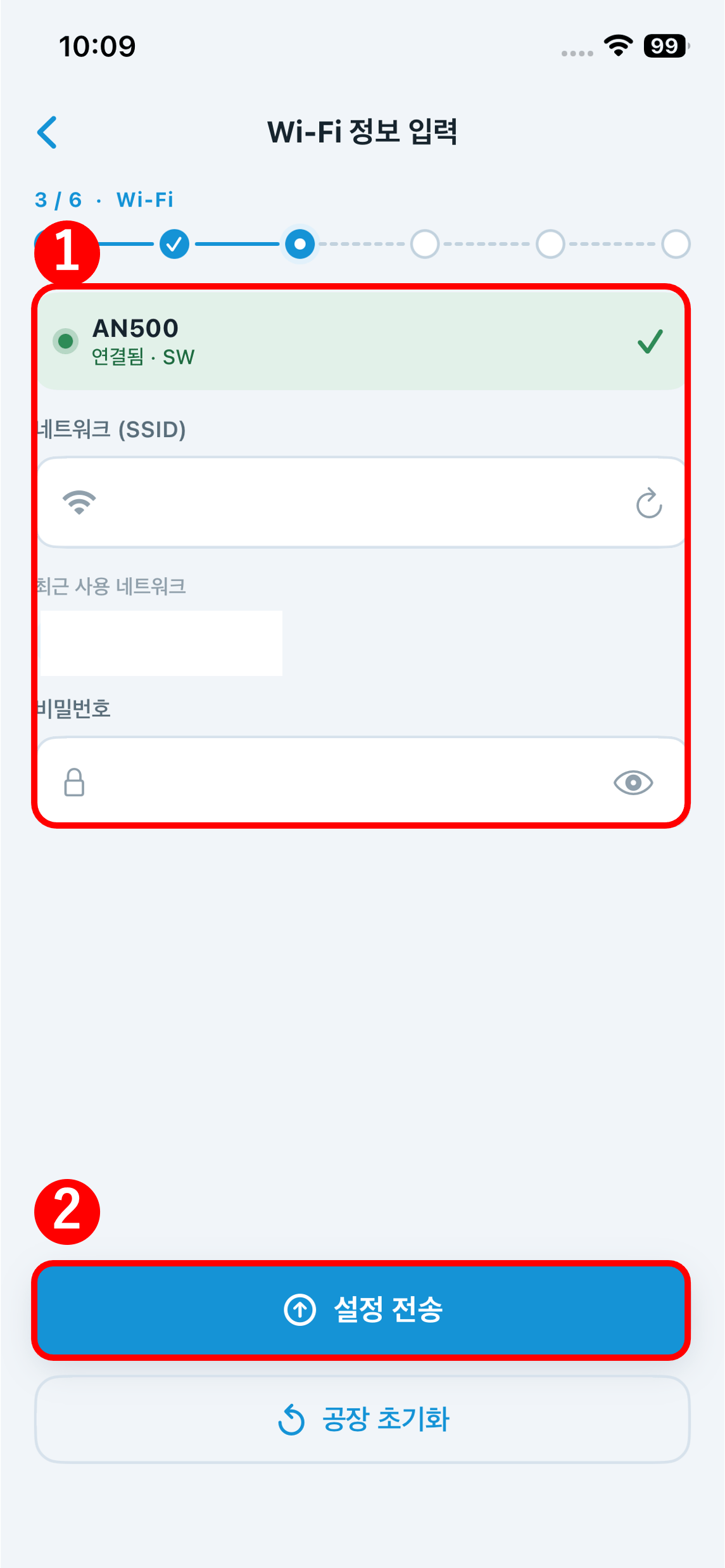
Locator Wi-Fi supports 2.4 GHz networks only. 5 GHz networks will not connect,
so enter a 2.4 GHz network SSID.
If there is no 2.4 GHz Wi-Fi on-site and you use an iPhone Personal Hotspot (tethering)
- On the iPhone, go to Settings → Personal Hotspot and turn it on.
- On the same screen, turn on [Maximize Compatibility]. The hotspot only runs on 2.4 GHz when this is on.
- In the Wi-Fi details, enter the iPhone’s name as the network (SSID) and the ‘Wi-Fi Password’ shown on the hotspot screen as the password.
- Keep the iPhone running the hotspot near the locators until hardware registration and the cluster apply are complete.
- Enter the network (SSID) and password.
- Click [Send Settings].
[Factory Reset] at the bottom is not used in normal operation. Use it only when a locator still does not connect after setting Wi-Fi again;
for the procedure and what to do afterwards, see Troubleshooting.
- The reboot takes about 30 seconds; keep the connection and wait until it completes.
3) Confirming Registration
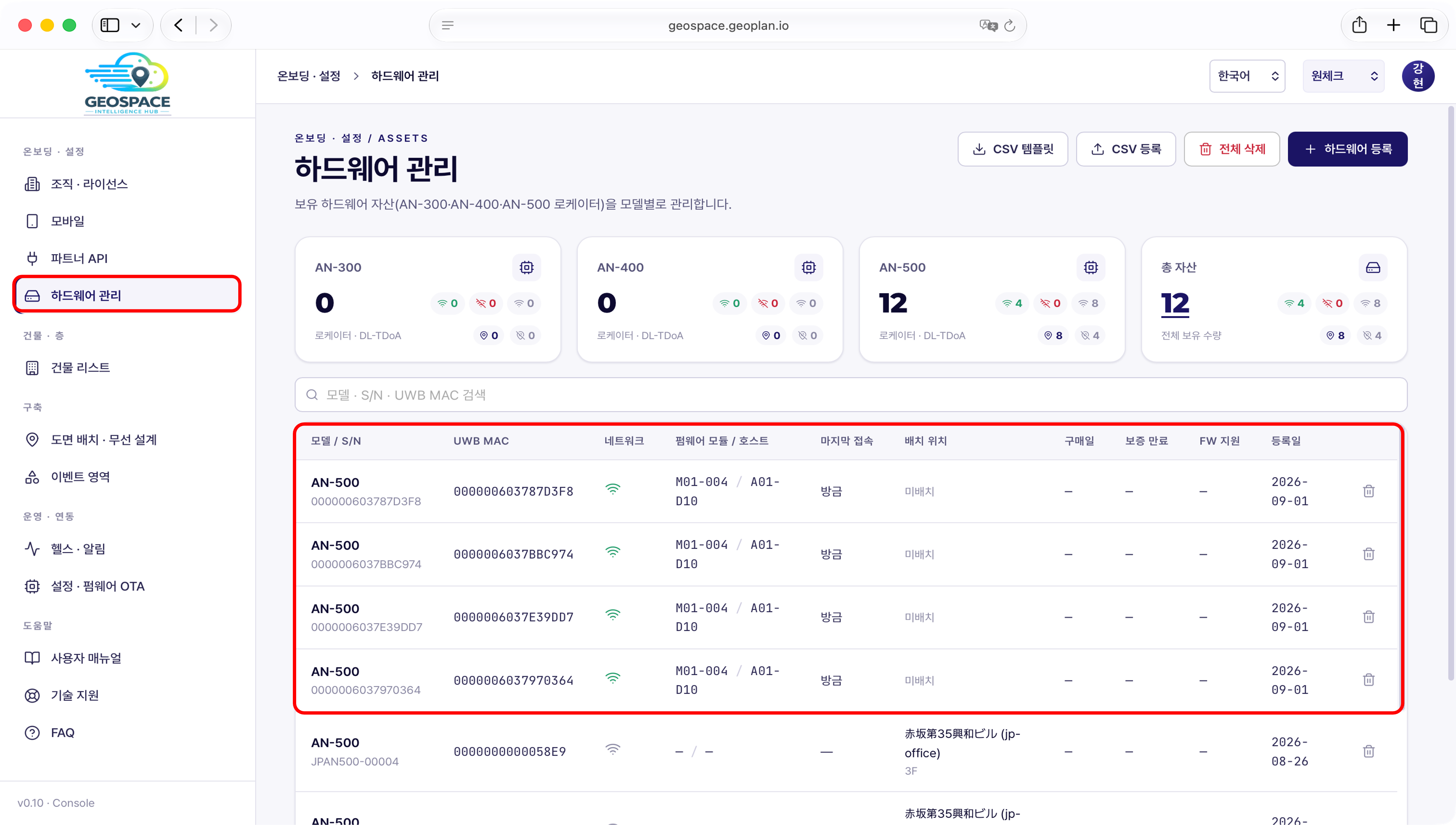
- Confirm all registered locators appear in the list. Match the last 4 digits of each UWB MAC address against the digits written on the locator’s front.
- Confirm the network (Wi-Fi) connection status and the ‘Last connected’ time are shown.
- Confirm each locator’s top LED is green and its bottom LED is blue (server connected). (For LED positions and color meanings, see the LED tables in 4. On-Site Locator Installation.)
- ‘Placement’ shows as ‘Unplaced’ at this point; it is filled in once the locator is placed on the plan in 6. Activating Positioning.
Checklist
Once all items below are confirmed, you can move on to the next step.