

1) Access
Go to GeoSpace (geospace.geoplan.io).
2) Account Registration
First-time users register through an email invitation. Invited users need no separate sign-up: log in with the invited Google or Microsoft account and start right away.- Only business Google Workspace or Microsoft (Teams / Entra ID) accounts are supported.
- If you have not received an invitation, contact support@ones1ght.com.
You must log in within 14 days of the invitation; after 14 days the invitation expires.
If it has expired, ask your administrator to invite you again.
3) Adding Users
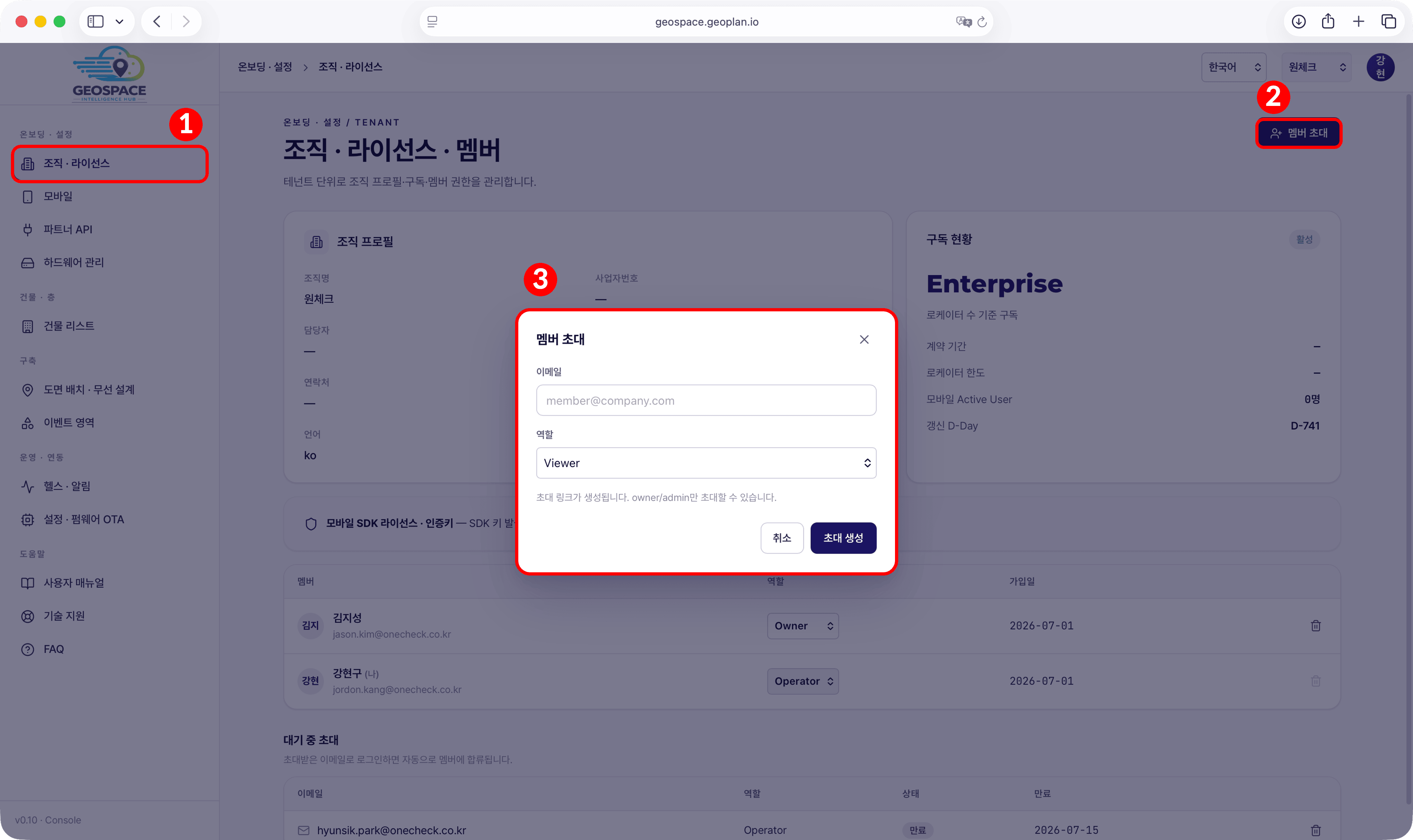
Note that GeoSpace roles (
OneS1ght roles (
admin · operator · viewer) use different names fromOneS1ght roles (
owner · manager · viewer).Only owner or admin roles can invite members.
Registered members can have their role changed or be removed from the list.
Invite the OneS1ght support contact (recommended)
If you invite the OneS1ght support contact (jordon.kang@onecheck.co.kr) as a member, the contact can check with you that the setup was done as guided and, if a problem occurs, look at the screen directly and fix it quickly. We recommend inviting them as operator; if you only want them to view, viewer is also fine.
If you invite the OneS1ght support contact (jordon.kang@onecheck.co.kr) as a member, the contact can check with you that the setup was done as guided and, if a problem occurs, look at the screen directly and fix it quickly. We recommend inviting them as operator; if you only want them to view, viewer is also fine.
4) Checking the License
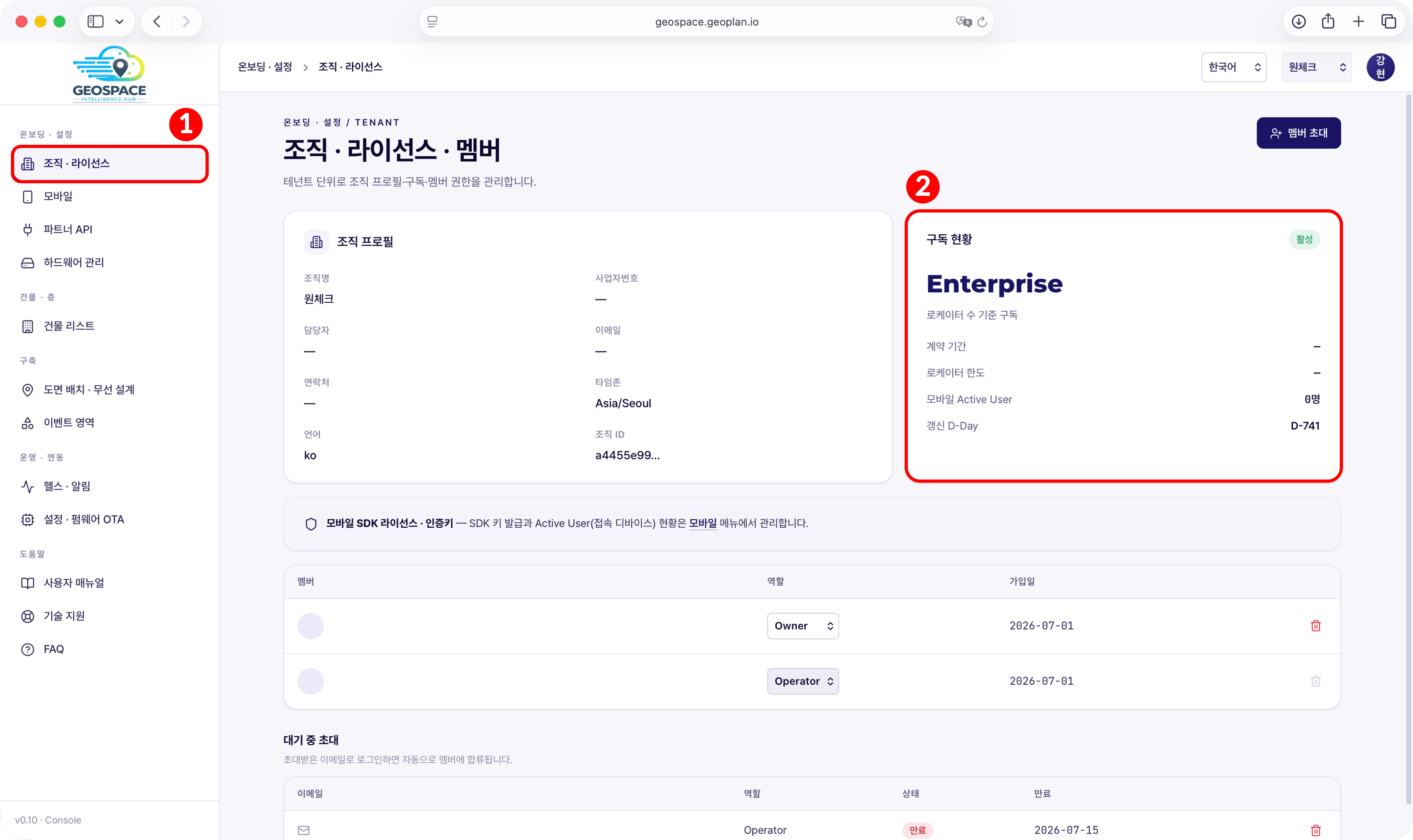
- If the displayed license information differs from your contract,
contact support@ones1ght.com.
5) Language
You can switch the language (한국어 / English / 日本語) at the top right.Checklist
Once all items below are confirmed, you can move on to the next step.