> ## Documentation Index
> Fetch the complete documentation index at: https://docs.ones1ght.com/llms.txt
> Use this file to discover all available pages before exploring further.
# Positioning Integration Overview
> The full path to bringing OneS1ght indoor positioning into your app — from GeoSpace infrastructure to OneS1ght console setup and SDK integration.
OneS1ght indoor positioning is built on three parts: **GeoSpace (positioning infrastructure)**, the **OneS1ght console**, and the **SDK (your app)**. Each plays its own role and exchanges data with the others so that indoor positioning works in your app.
## How the parts fit together
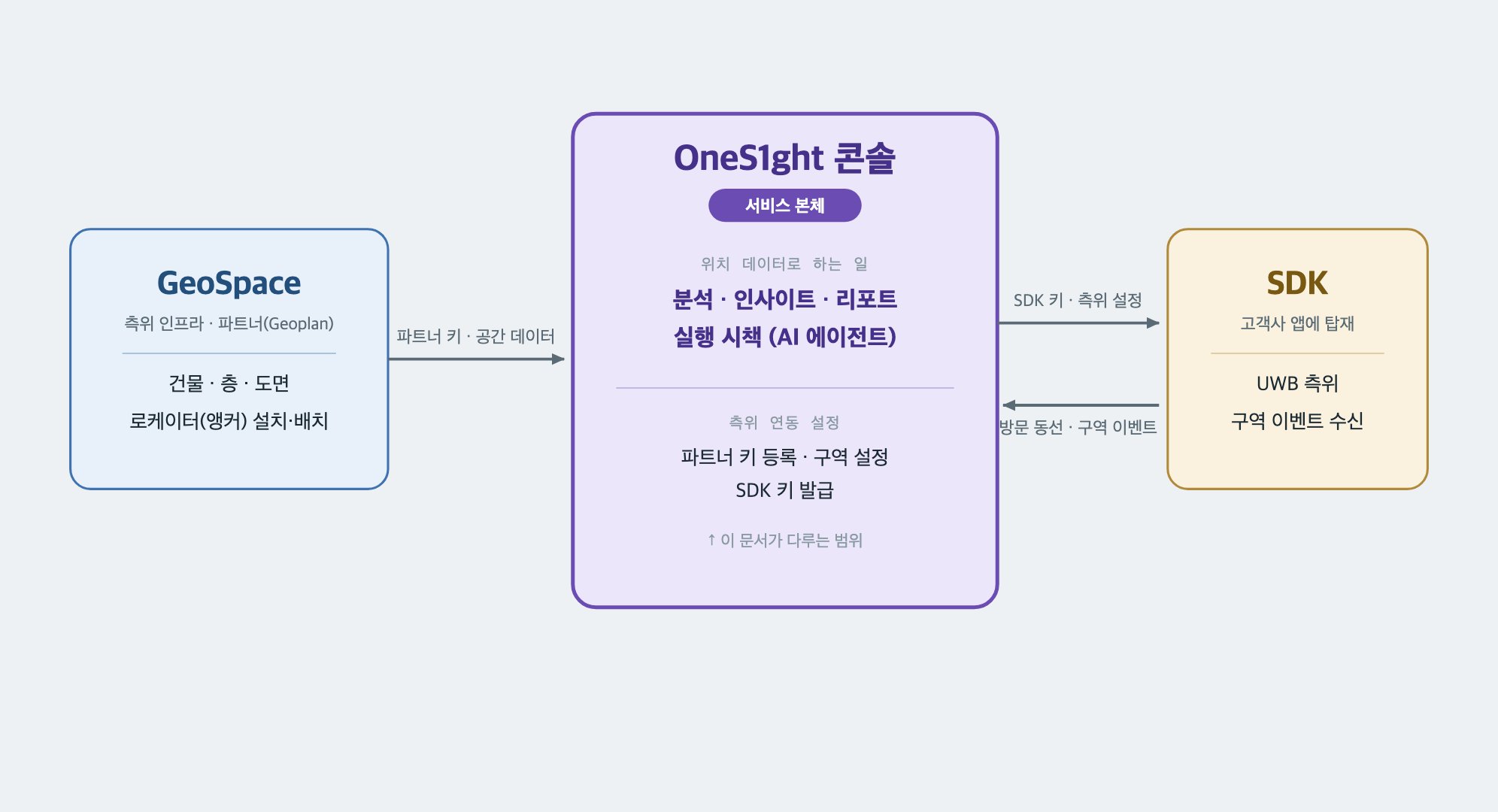 The **partner (Geoplan)** providing indoor positioning infrastructure. Registers and manages buildings, floors, plans, and locators (anchors), and issues the **partner key** used for integration.
**The service itself.** Turns collected location and movement data into **analytics, insights, and reports**, and connects them to **actions (AI agents)**. Partner key registration, area setup, and SDK key issuance also happen here.
The **positioning library you embed in your app**. Measures indoor position over UWB and **delivers zone entry, exit, and dwell events** to your app.
This guide covers only what's needed for **positioning integration** (GeoSpace preparation, console setup, SDK integration). Console analytics, insights, and reporting features are out of scope.
## Order of work
Prepare the three parts in this order — each step is a prerequisite for the next.
Register buildings, floors, and plans, install and place locators, then issue the **partner key**.
Register the partner key to connect your spaces, create the **areas** you want to detect, and issue an **SDK key**.
Use the SDK key to add the SDK to your app. Positioning and zone events then flow back into the console.
## Detailed flow
In the partner infrastructure, register buildings, floors, and plans, then install and place locators (anchors). Finally, issue the **partner key**.
→ [GeoSpace setup](/en/geospace/onboarding) · [Build spaces](/en/geospace/spaces) · [Locator setup](/en/geospace/locators)
**Register** the partner key in the console to connect your floor plans, set up the **areas (zones)** to detect, then issue the **SDK key** for your app.
→ [Positioning connection](/en/locator/positioning-data) · [Space management](/en/locator/areas) · [Mobile SDK Keys](/en/locator/sdk-keys)
Add the OneS1ght SDK to your app using the SDK key. The flow is: initialize → start positioning → receive zone events.
→ [Mobile SDK overview](/en/sdk/overview) · [Installation](/en/sdk/installation) · [Usage](/en/sdk/usage)
## Two consoles
Two different consoles are involved. Remember that **① happens in GeoSpace and ② in the OneS1ght console.**
| Console | Step | What it's for | Address |
| ---------------------- | ---- | ---------------------------------------------------------------------------------------------------------------------- | ------------------------------ |
| **GeoSpace** (partner) | ① | Buildings, floors, plans, locators; partner key issuance | `https://geospace.geoplan.io` |
| **OneS1ght console** | ② | Location analytics, insights, reports, and actions (plus positioning setup: partner key registration, areas, SDK keys) | `https://console.ones1ght.com` |
The two consoles also use different role systems: GeoSpace uses `admin · operator · viewer`, while the OneS1ght console uses `owner · manager · viewer`.
## Prerequisites checklist
Before integrating the SDK (③), the following must be in place.
| Prerequisite | Where | Documentation |
| ---------------------------------------------- | --------------------------- | ------------------------------------------------------ |
| Buildings, floors, plans (scaled) | GeoSpace | [Build spaces](/en/geospace/spaces) |
| Locators installed and placed | GeoSpace | [Locator setup](/en/geospace/locators) |
| Partner key issued → registered in the console | GeoSpace → OneS1ght console | [Positioning connection](/en/locator/positioning-data) |
| Areas (zones) configured | OneS1ght console | [Space management](/en/locator/areas) |
| SDK key issued | OneS1ght console | [Mobile SDK Keys](/en/locator/sdk-keys) |
**GeoSpace** is a partner service (Geoplan) providing UWB indoor positioning infrastructure. This guide covers only the preparation needed for OneS1ght integration — see the GeoSpace guide for details on GeoSpace itself.
## Next steps
Sign in, choose a tenant, and issue a partner key.
How to add the SDK to your app.
The **partner (Geoplan)** providing indoor positioning infrastructure. Registers and manages buildings, floors, plans, and locators (anchors), and issues the **partner key** used for integration.
**The service itself.** Turns collected location and movement data into **analytics, insights, and reports**, and connects them to **actions (AI agents)**. Partner key registration, area setup, and SDK key issuance also happen here.
The **positioning library you embed in your app**. Measures indoor position over UWB and **delivers zone entry, exit, and dwell events** to your app.
This guide covers only what's needed for **positioning integration** (GeoSpace preparation, console setup, SDK integration). Console analytics, insights, and reporting features are out of scope.
## Order of work
Prepare the three parts in this order — each step is a prerequisite for the next.
Register buildings, floors, and plans, install and place locators, then issue the **partner key**.
Register the partner key to connect your spaces, create the **areas** you want to detect, and issue an **SDK key**.
Use the SDK key to add the SDK to your app. Positioning and zone events then flow back into the console.
## Detailed flow
In the partner infrastructure, register buildings, floors, and plans, then install and place locators (anchors). Finally, issue the **partner key**.
→ [GeoSpace setup](/en/geospace/onboarding) · [Build spaces](/en/geospace/spaces) · [Locator setup](/en/geospace/locators)
**Register** the partner key in the console to connect your floor plans, set up the **areas (zones)** to detect, then issue the **SDK key** for your app.
→ [Positioning connection](/en/locator/positioning-data) · [Space management](/en/locator/areas) · [Mobile SDK Keys](/en/locator/sdk-keys)
Add the OneS1ght SDK to your app using the SDK key. The flow is: initialize → start positioning → receive zone events.
→ [Mobile SDK overview](/en/sdk/overview) · [Installation](/en/sdk/installation) · [Usage](/en/sdk/usage)
## Two consoles
Two different consoles are involved. Remember that **① happens in GeoSpace and ② in the OneS1ght console.**
| Console | Step | What it's for | Address |
| ---------------------- | ---- | ---------------------------------------------------------------------------------------------------------------------- | ------------------------------ |
| **GeoSpace** (partner) | ① | Buildings, floors, plans, locators; partner key issuance | `https://geospace.geoplan.io` |
| **OneS1ght console** | ② | Location analytics, insights, reports, and actions (plus positioning setup: partner key registration, areas, SDK keys) | `https://console.ones1ght.com` |
The two consoles also use different role systems: GeoSpace uses `admin · operator · viewer`, while the OneS1ght console uses `owner · manager · viewer`.
## Prerequisites checklist
Before integrating the SDK (③), the following must be in place.
| Prerequisite | Where | Documentation |
| ---------------------------------------------- | --------------------------- | ------------------------------------------------------ |
| Buildings, floors, plans (scaled) | GeoSpace | [Build spaces](/en/geospace/spaces) |
| Locators installed and placed | GeoSpace | [Locator setup](/en/geospace/locators) |
| Partner key issued → registered in the console | GeoSpace → OneS1ght console | [Positioning connection](/en/locator/positioning-data) |
| Areas (zones) configured | OneS1ght console | [Space management](/en/locator/areas) |
| SDK key issued | OneS1ght console | [Mobile SDK Keys](/en/locator/sdk-keys) |
**GeoSpace** is a partner service (Geoplan) providing UWB indoor positioning infrastructure. This guide covers only the preparation needed for OneS1ght integration — see the GeoSpace guide for details on GeoSpace itself.
## Next steps
Sign in, choose a tenant, and issue a partner key.
How to add the SDK to your app.