> ## Documentation Index
> Fetch the complete documentation index at: https://docs.ones1ght.com/llms.txt
> Use this file to discover all available pages before exploring further.
# GeoSpace Setup & Partner Key
> Sign in to GeoSpace, confirm your tenant and organization, and issue the partner key required for OneS1ght integration.
This page covers the preparation steps in **GeoSpace**, our positioning infrastructure partner. For details on GeoSpace itself, see the GeoSpace guide.
## Signing in
GeoSpace access is **invitation-based**. The first owner is registered by email invitation; after that, members are invited by an organization admin.
The first Owner is registered via **email invitation**. If you haven't received one, contact `onesight-support@onecheck.co.kr`.
Sign in with a **Google** or **Microsoft** (Teams / Entra ID) account. Your account is created automatically on first sign-in.
Select the **tenant (customer organization)** you want to work in from the top bar — every screen operates in the context of the selected tenant. You can switch the language (English / 한국어 / 日本語) at the top right.
## Organization & license
Manage organization details, members and permissions, and your subscription under **Organization & License**.
### Inviting members
Under **Invite member**, enter an email address and role to send an invitation. Access is limited by role.
| Role | Access |
| -------- | ---------------------------------------------------- |
| admin | Full management, including organization and settings |
| operator | Operational work (spaces, areas, and so on) |
| viewer | Read-only |
GeoSpace roles (`admin · operator · viewer`) differ from OneS1ght console roles (`owner · manager · viewer`). Take care not to confuse them when moving between the two consoles.
### License
Your subscription status shows the following.
| Item | Description |
| ----------------------------------- | ------------------------------------------------------------------- |
| Locator limit | Number of locators you can register and use under your subscription |
| Mobile active users | Devices that connected at least once during the contract period |
| Contract period / renewal countdown | Your contract period and days remaining until renewal |
## Issuing a partner key
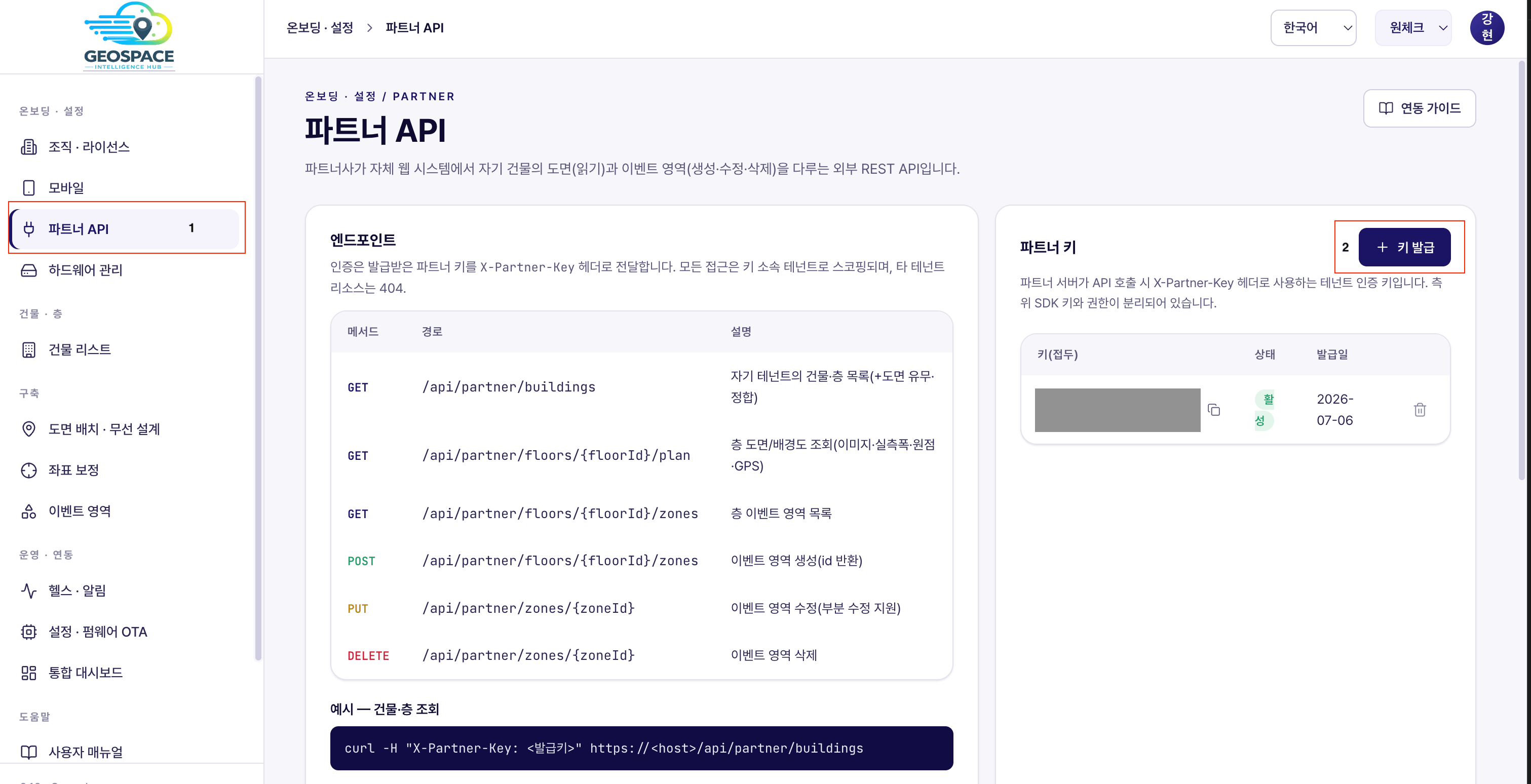
The **partner key** is a tenant credential that partner servers send in the `X-Partner-Key` header. The OneS1ght console uses it to fetch building, plan, and zone data from GeoSpace. (Its permissions are separate from the positioning SDK key.)
Go to the **Partner API** menu in GeoSpace.
Press **\[+ Issue key]** in the **Partner key** panel on the right to generate a new partner key (`gpk_...`). Copy the value and store it somewhere safe.
 Register the key under [Positioning connection](/en/locator/positioning-data) in the OneS1ght console to start using real plan and zone data. See that page for details.
If you issue a partner key but **never register it** in the OneS1ght console, positioning will not work. Be sure to complete registration under [Positioning connection](/en/locator/positioning-data).
## Next steps
Register buildings, floors, and plans, and set the scale.
Register your partner key in the OneS1ght console.
Register the key under [Positioning connection](/en/locator/positioning-data) in the OneS1ght console to start using real plan and zone data. See that page for details.
If you issue a partner key but **never register it** in the OneS1ght console, positioning will not work. Be sure to complete registration under [Positioning connection](/en/locator/positioning-data).
## Next steps
Register buildings, floors, and plans, and set the scale.
Register your partner key in the OneS1ght console.